Stop using the drive from which the Outlook Data File (PST) was deleted. Check Recycle Bin and backups first. If the file is not available there, open PST Recovery in Amrev Outlook Email Recovery, select the source drive, and choose Scan Drive. After the scan, select the required PST files and save them to a different physical drive. Open the recovered PST in Outlook and check its folders and messages.
Stop writing new data to the source drive
When Windows deletes a file, the storage space it used can become available for new data. Installing software, downloading files, copying photos, or continuing normal work on that drive may overwrite parts of the deleted PST.
- Close Outlook immediately.
- Do not create a new PST on the source drive.
- Do not install Amrev onto the source drive.
- Do not save recovered files back to that drive.
- Use another physical drive for the application and results.
- Avoid cleanup, optimization, or defragmentation tools.
If the PST was deleted from the Windows system drive, use the computer as little as possible before scanning. Background updates and temporary files can also write new data.
Check Recycle Bin and backups first
Open Recycle Bin and search for .pst. If the file is present, right-click it and choose Restore. Windows returns it to its previous folder. Copy the restored PST before opening it in Outlook.
Also check File History, Windows Backup, cloud backups, external backup drives, and any manually created Outlook archive copies. A backup is preferable to drive scanning because it retains the original filename and is less likely to be incomplete.
Scan the drive where the PST was deleted, but save recovered files to another physical drive. Saving onto the source may overwrite other PST data that has not yet been recovered.
How to recover deleted PST file from hard drive
Connect the destination drive before starting. Confirm its drive letter and available free space so it is not confused with the source during recovery.
Select the drive where the PST was deleted
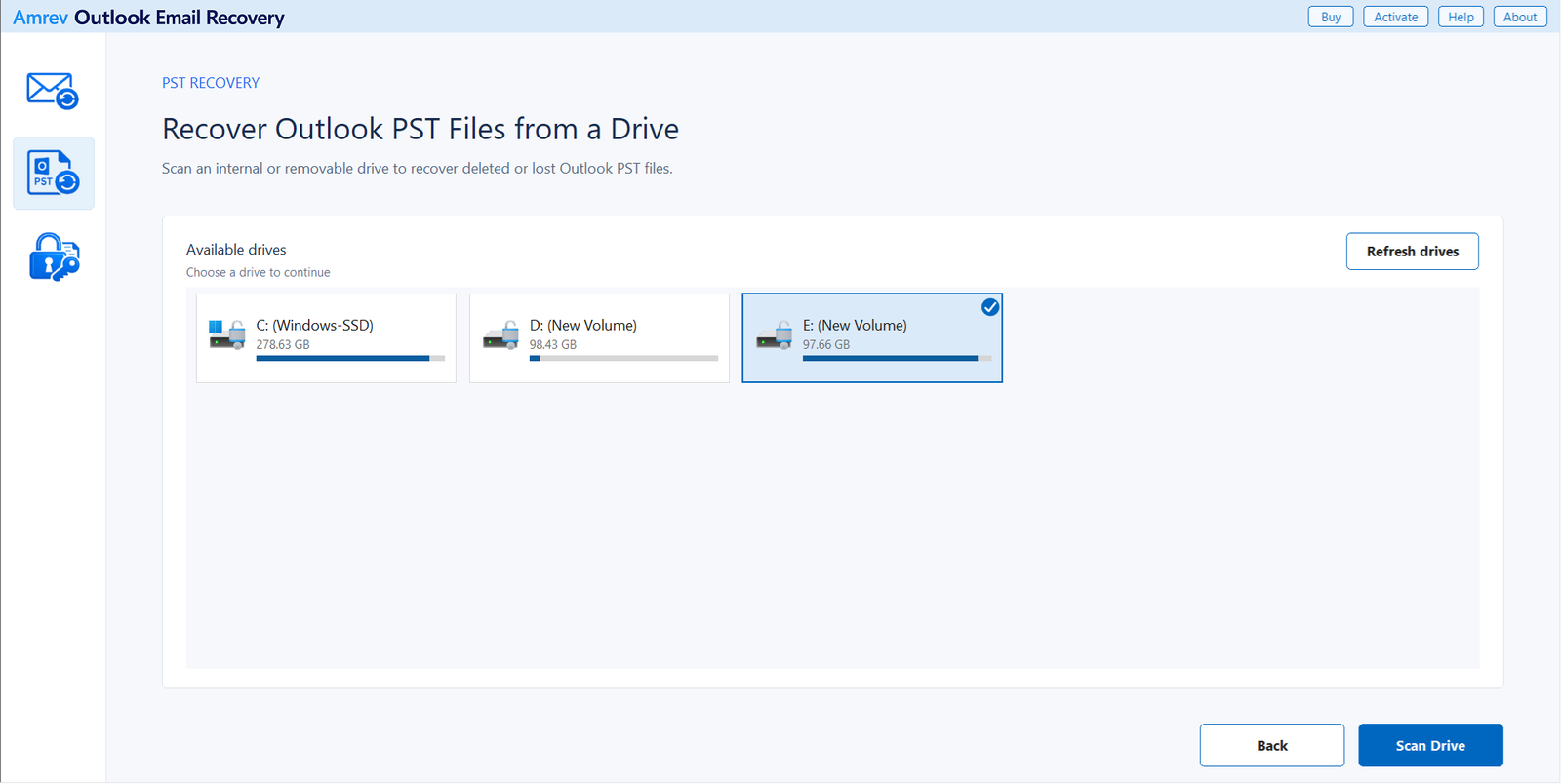
Open Amrev Outlook Email Recovery and select PST Recovery from the left side. The program lists available internal and removable drives. Select the drive that previously contained the PST, then choose Scan Drive. Use Refresh drives if a newly connected drive does not appear.
Let the drive scan finish
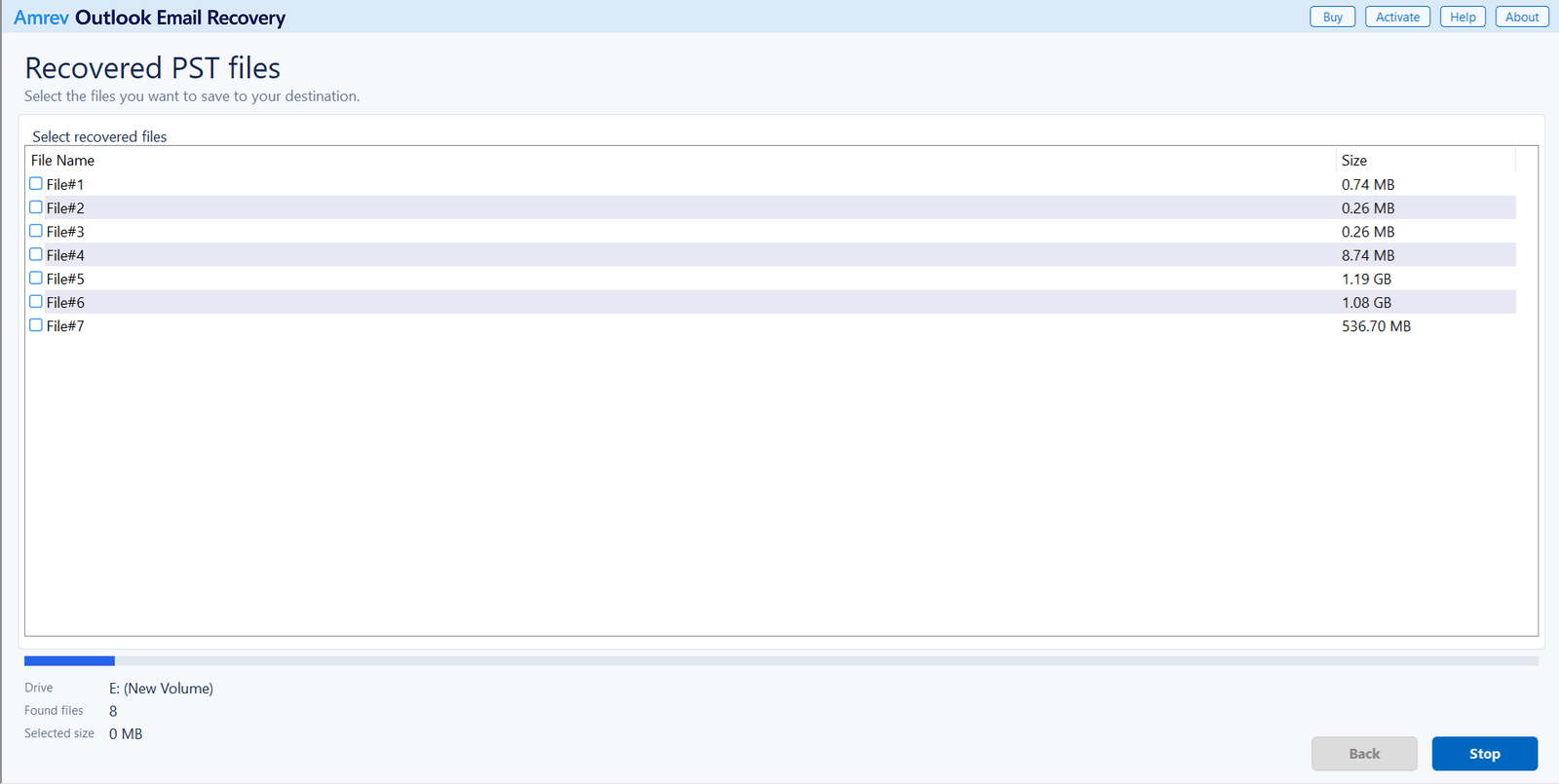
Amrev lists PST files as it finds them and shows the size of each result. Allow the scan to reach the end whenever possible. A familiar file may appear early, but another result found later may be a more complete or newer copy.
Select the PST files you want to recover
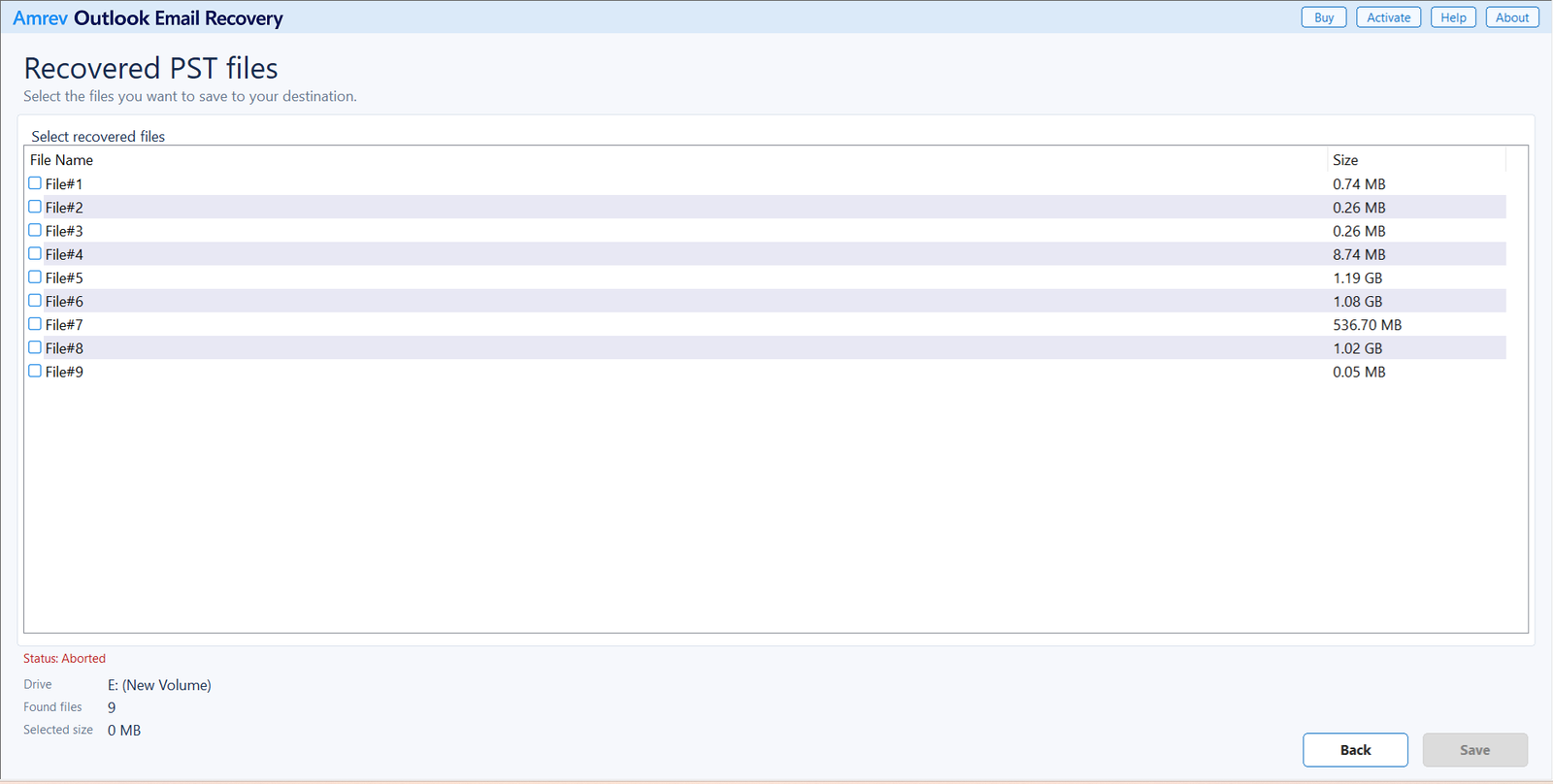
Review the recovered-file list and select likely PST files using the checkboxes. Filename information may be incomplete after deletion, so compare file sizes and recover every plausible candidate when enough destination space is available.
Save and check each recovered PST
Choose Save and select a destination on another physical drive. Do not save to the drive being scanned. When recovery is complete, keep an untouched copy of each recovered PST and use a second copy for testing.
Scan the drive where the data file was deleted
Select the source drive, review found PST files, and save the required files to a different physical drive.
How to identify the correct recovered PST
A deleted file may be found without its original name, so the result list can contain generic filenames. Recover all likely candidates, then compare them safely:
- Keep the recovered files on the destination drive.
- Make a copy before opening or repairing a result.
- Compare file sizes with what you remember about the original PST.
- Open each readable PST as a separate Outlook data file.
- Check folder names, newest message dates, contacts, and calendar entries.
A very small PST may still contain useful items, while a large result may belong to an old archive. Contents are more reliable than the recovered filename.
When deleted-file recovery may be incomplete
Recovery depends on how much of the deleted file remains on the drive. Results may be incomplete if Windows or another application reused its storage space, the drive was heavily used after deletion, or the storage device has hardware problems.
Solid-state drives can also clear deleted storage through TRIM, which may reduce the chance of recovery. No recovery tool can reconstruct parts of a PST that the drive has already erased or overwritten.
Frequently asked questions
Can Amrev recover a deleted PST directly from a drive?+
Yes. Its PST Recovery mode scans an internal or removable drive for deleted or lost PST files and lets you select files to save elsewhere.
Can I save the recovered PST to the same drive?+
Do not save recovered files to the source drive. Use another physical drive so the save operation does not overwrite other recoverable data.
Why does a recovered PST have a generic filename?+
Deletion can remove or damage the original filename information while file content remains recoverable. Compare file sizes and inspect each recovered PST to identify it.
What if Outlook cannot open the recovered PST?+
Keep the recovered original untouched. Make a copy and scan that copy with Amrev Email Recovery to rebuild recoverable mailbox data into a new PST.
Can every deleted PST be recovered?+
No. Recovery may be partial or impossible when deleted storage has been overwritten, cleared by SSD TRIM, or affected by hardware damage.