Expand the complete folder list, reset the current view, and confirm that Outlook has opened the correct profile and PST. Search for a message that belonged to the missing folder; the result can reveal whether it was moved. If the folder is absent because the PST is damaged or data was deleted, close Outlook, copy the PST, and scan the copy with Amrev Outlook Email Recovery. Select a destination before starting. The full version automatically creates a new PST containing the recovered folders and mailbox items.
First check whether the folder is only hidden
Start with the folder pane rather than changing the PST. Outlook can make a folder appear missing even when nothing has been deleted.
- Choose View > Folder Pane > Normal in classic Outlook.
- Expand the mailbox or Outlook Data File by selecting the arrow beside its name.
- Look under the full folder tree, not only the Favorites section.
- Check Deleted Items in case the folder was moved there accidentally.
- Use Outlook Search with a sender or subject from a message that was stored in the folder.
If a search result appears, open the message and check its location. That often explains whether the folder was renamed, moved below another folder, or opened under a different data file.
Check the Outlook profile, PST, and view
Confirm that the correct PST is open
Go to File > Account Settings > Account Settings > Data Files. Compare the listed files with the PST you normally use. If an older PST is missing, choose File > Open & Export > Open Outlook Data File and open it manually.
Reset a changed folder view
A filter can hide every message in a folder, making the folder look empty rather than missing. Open the affected folder and choose View > Reset View. Also check View Settings > Filter and remove filters that you did not intend to keep.
Check other Outlook profiles
If the folder disappeared after a profile change or Office repair, close Outlook and open Control Panel > Mail > Show Profiles. The original PST may still be attached to another profile. Avoid deleting a profile until you have identified and copied its data files.
Close Outlook before copying the file. Work on the copy and select a different destination for recovered data. This keeps the original available if you need to try another recovery method.
When should you scan the PST?
A recovery scan is appropriate when the folder does not appear in any Outlook profile, the PST produces errors, or messages and subfolders disappeared after a crash. These signs point to a problem inside the data file rather than a display setting:
- A folder and its messages vanished together.
- Outlook reports that the PST cannot be opened.
- The folder tree changed after Outlook or Windows crashed.
- ScanPST repaired the file, but folders are still missing.
- Outlook freezes when expanding part of the mailbox.
- An older PST opens with an incomplete folder structure.
How to recover deleted Outlook folders from PST
Use the copied PST as the source. Amrev scans the file for recoverable folders and items, then rebuilds the result in a separate PST at the destination you choose.
Select the PST and destination folder
Open Amrev Outlook Email Recovery and choose Browse beside Source file. Select the copied PST, or use Find PST if you do not know its location. Choose a separate destination folder for the recovered PST. Start with Normal Scan; use Intensive Scan if the folder is not found or the PST is severely damaged.
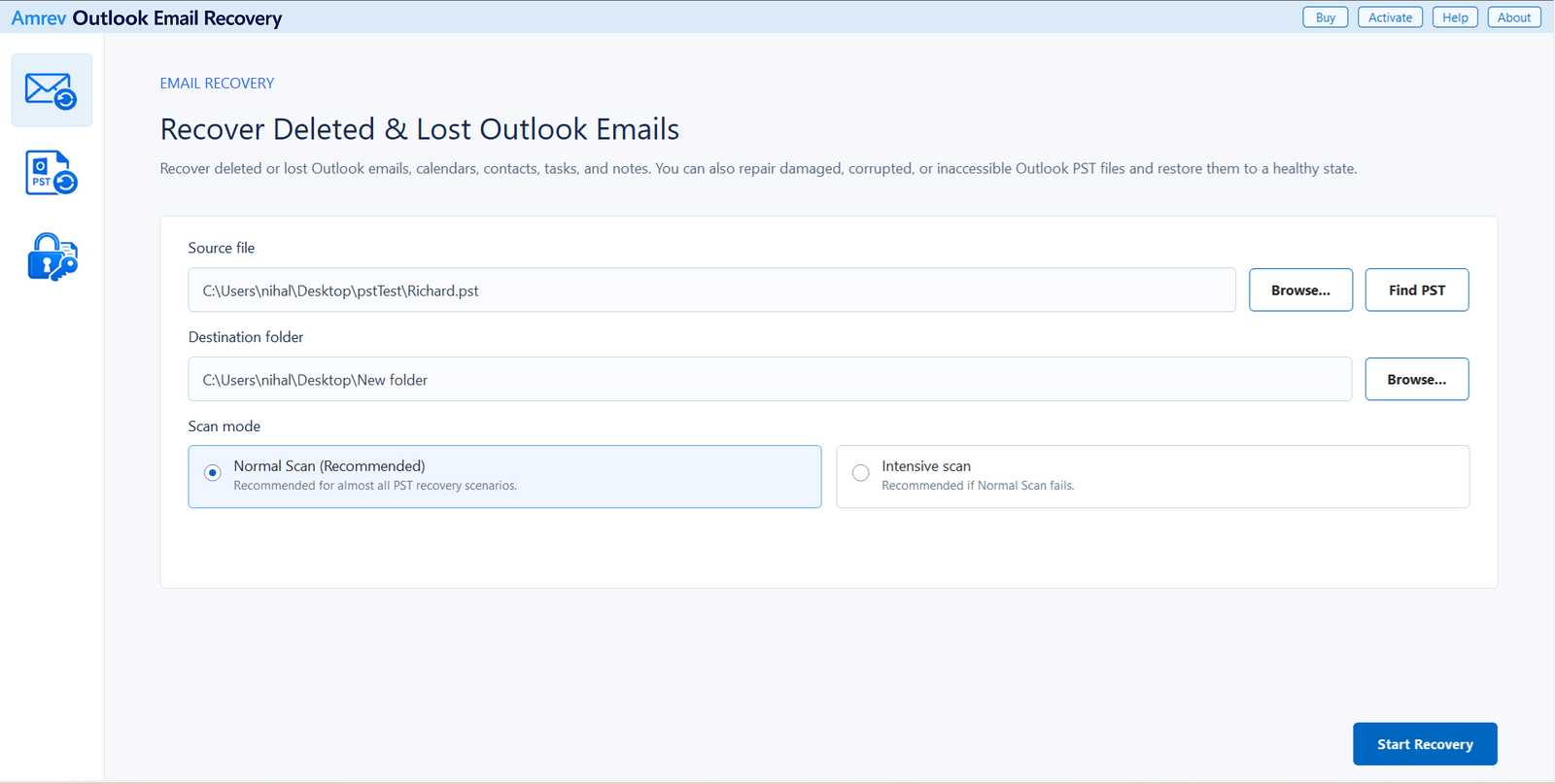
Run the scan to completion
Choose Start Recovery. Folders may appear in the tree while the scan is still running, but do not stop as soon as you see the first results. A missing subfolder may be located later in the PST, particularly during an Intensive Scan.
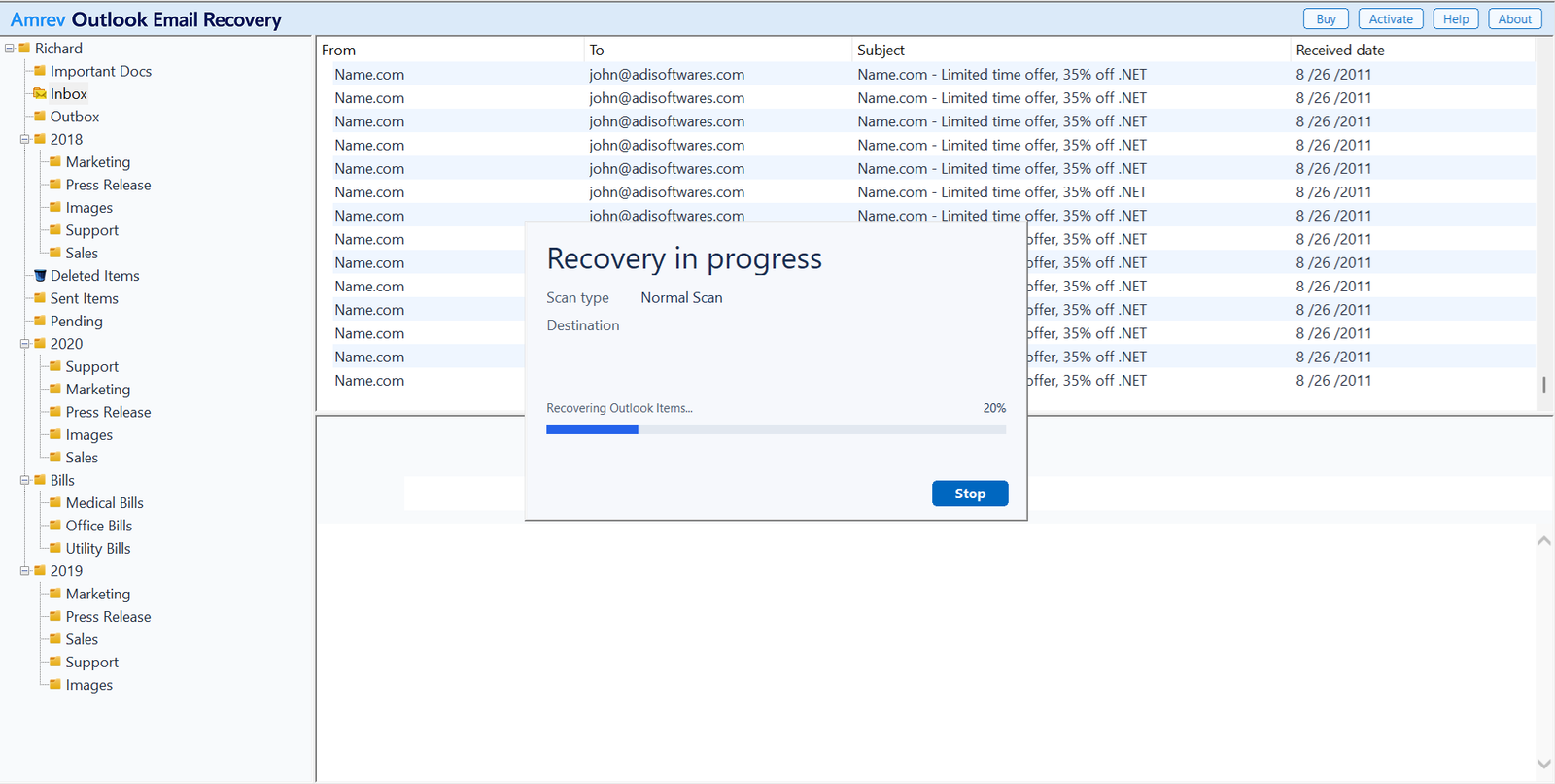
Inspect the recovered folder structure
Expand the recovered tree and look for the missing folder by name and by its former parent folder. Open several messages to confirm that the contents belong there. If the original folder name is unavailable, check recovered or reconstructed folders for messages from the same dates and senders.
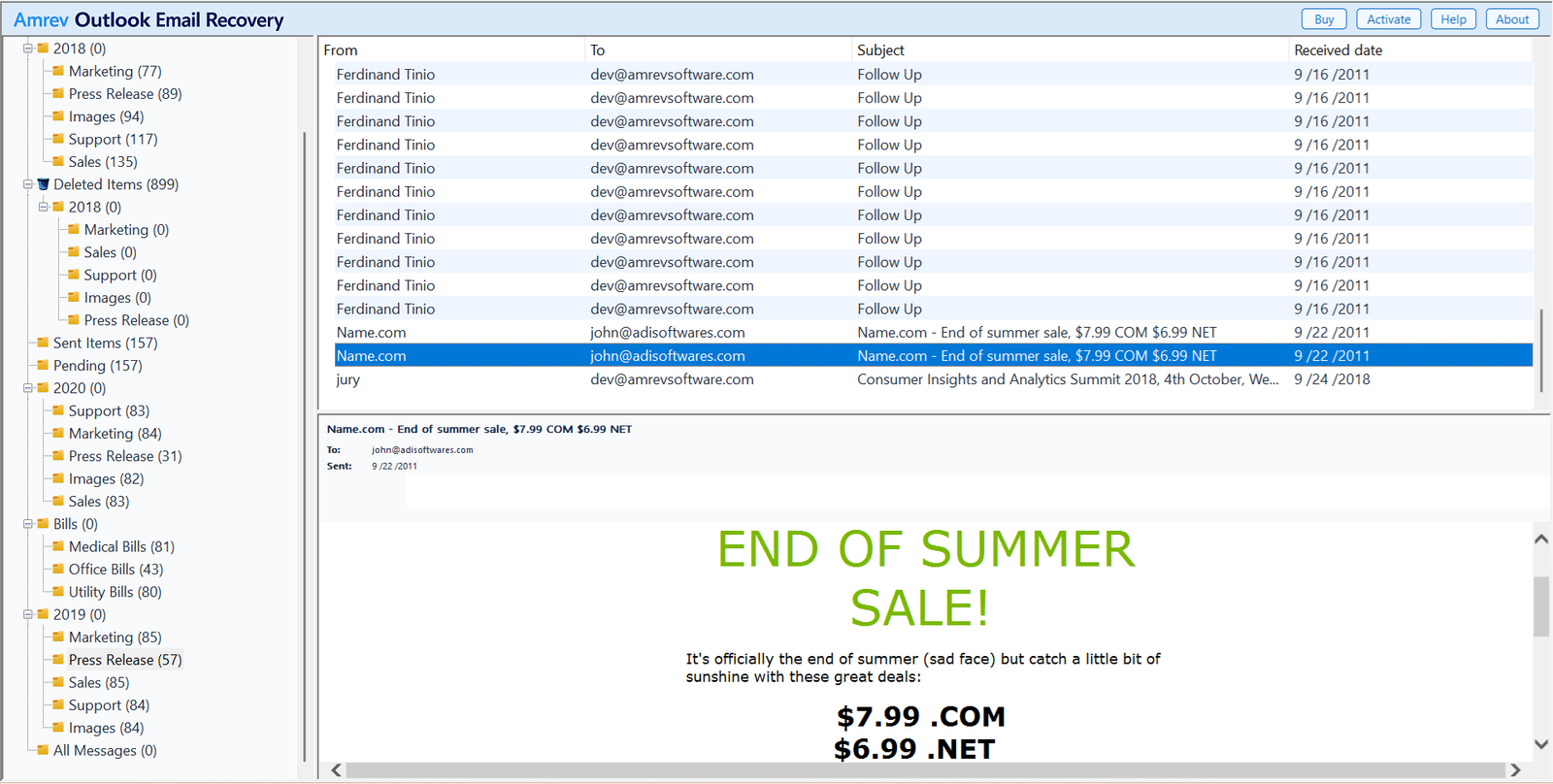
Open or import the recovered PST
After the scan completes, the new PST is already in the destination selected in Step 1. There is no separate save step. The full version writes the recovered folders and mailbox items to that PST. The trial also creates a PST, but it contains no actual recovered emails.
Scan a copy of your Outlook PST
The trial lets you inspect what the scan finds. Its generated PST contains no actual emails; the full version creates the PST with recovered mailbox data.
What if the recovered folder has a different name?
Severe PST damage can break the link between a folder record and its original name. The messages may still be recoverable even when the exact folder label or position cannot be reconstructed. Check folders by date, sender, subject, and message count rather than relying only on the old name.
After opening the recovered PST in Outlook, you can create a correctly named folder and move verified messages into it. Keep the recovered PST unchanged until you have checked that the important folders and attachments are present.
Frequently asked questions
Why did my Outlook folders suddenly disappear?+
The folder pane may be collapsed, Outlook may have opened another profile or PST, or the current view may be filtered. A crash or PST error can also damage the folder structure.
Can I recover a deleted Outlook folder?+
First check Deleted Items and server-side Recover Deleted Items where available. If the folder belonged to a local PST and is no longer visible, stop using the PST, copy it, and run a recovery scan.
Will recovered folders keep their original structure?+
Amrev rebuilds recoverable folders and mailbox items in a new PST. When the necessary folder records remain intact, the hierarchy can be preserved. Severe damage may prevent some folder names or positions from being reconstructed exactly.
Does recovery modify my original PST?+
The application reads the selected source and creates a new PST at the chosen destination. For safety, close Outlook and use a copy of the original PST as the source.
Does the trial PST contain my recovered emails?+
No. The trial can scan the PST and show the recovery result, but its generated PST contains no actual recovered emails. The full version writes recovered folders and mailbox data to the new PST.