Close Outlook and make a copy of the damaged PST before doing anything else. Open the copy in Amrev Outlook Email Recovery, select a destination folder, and choose Normal or Intensive Scan. The program automatically creates a new PST in that destination. With the full version, the new PST contains the recovered emails and other mailbox items and is ready to open or import into Outlook. If the damage appears minor, you can first try Microsoft’s SCANPST.EXE to repair basic structural errors.
How do you know a PST file is corrupt?
A PST is the local file in which classic Outlook keeps messages and other mailbox data. Sometimes Outlook reports corruption clearly. In other cases, the first sign is a missing folder, an email that will not open, or Outlook repeatedly closing at the same point.
- Outlook reports that the data file cannot be opened.
- The set of Outlook folders cannot be opened.
- Outlook freezes or closes when accessing a specific folder.
- Emails, folders, attachments, contacts, or calendar entries are missing.
- Send-and-receive operations fail after Outlook or Windows crashes.
- ScanPST finishes, but Outlook still cannot use the repaired file.
Close Outlook and create a copy of the PST before attempting repair or recovery. Work on the copy whenever possible and save recovered data to a different file or folder.
Repair the PST with Microsoft ScanPST
Classic desktop Outlook includes a small utility named SCANPST.EXE. It checks the PST’s internal structure and repairs errors it recognizes. Because it is already included with Outlook, it is the sensible first option for a file that has only light structural damage.
1. Close Outlook and locate ScanPST
Exit Outlook completely. ScanPST is stored inside the Office installation folder, and its location varies between 32-bit and 64-bit installations. These are the two places worth checking first:
C:\Program Files\Microsoft Office\root\Office16\SCANPST.EXE
C:\Program Files (x86)\Microsoft Office\root\Office16\SCANPST.EXE
2. Select the damaged PST file
Open SCANPST.EXE, choose Browse, and select your copied PST. If you are unsure where Outlook keeps the file, open Outlook and go to File > Account Settings > Account Settings > Data Files. Make a note of the path, close Outlook, and return to ScanPST.
3. Scan and repair detected errors
Choose Start and wait for the check to finish. If errors are listed, leave the backup option selected and choose Repair. Then reopen Outlook with the profile that uses that PST. Check the Inbox, Sent Items, Deleted Items, and any folders that were missing before the repair.
What if ScanPST cannot repair the PST?
ScanPST repairs database structure; it is not a deleted-email recovery program. Microsoft explains that an unreadable block can be removed during validation. That is why a repaired PST may open normally but still be missing a message, attachment, or entire folder.
A separate recovery scan is worth trying in the following situations:
- ScanPST repeatedly reports errors or stops responding.
- Outlook still cannot open the repaired PST.
- The Lost and Found folder is incomplete.
- Deleted emails or attachments are not restored.
- You need to inspect recoverable content before creating a new PST.
Scan the corrupt PST with Amrev Outlook Email Recovery
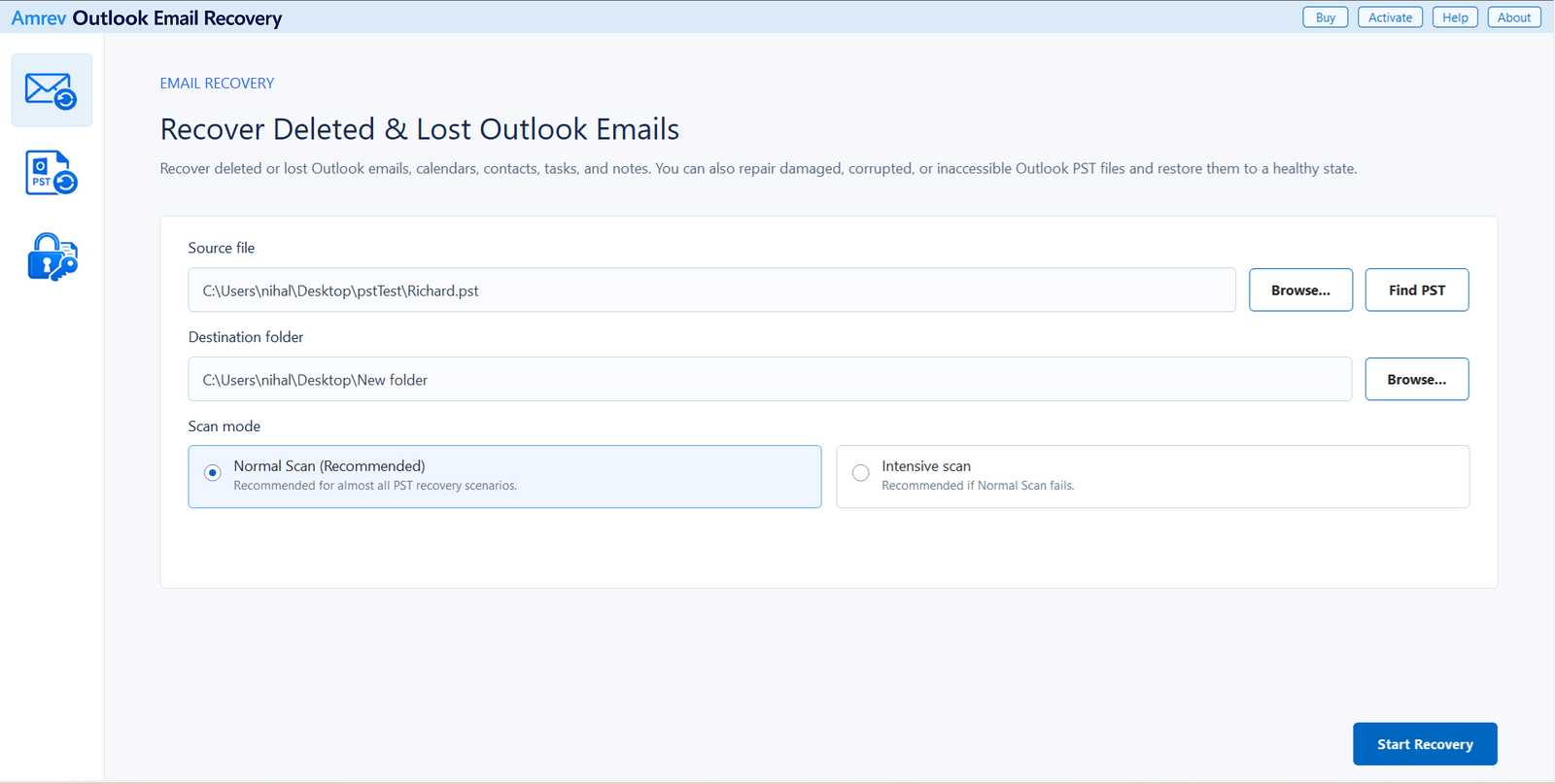
Keep the original file untouched and use the copied PST for this process. Before scanning, the program asks where the recovered PST should be created. The three screens below follow the application from file selection through the completed recovery.
Select the source PST and destination
Open Email Recovery and choose Browse beside Source file. Select the PST copy you made earlier, or use Find PST if its location is unknown. Next, choose a separate destination folder. The program will automatically create the recovered PST in this location, so do not select the source folder.
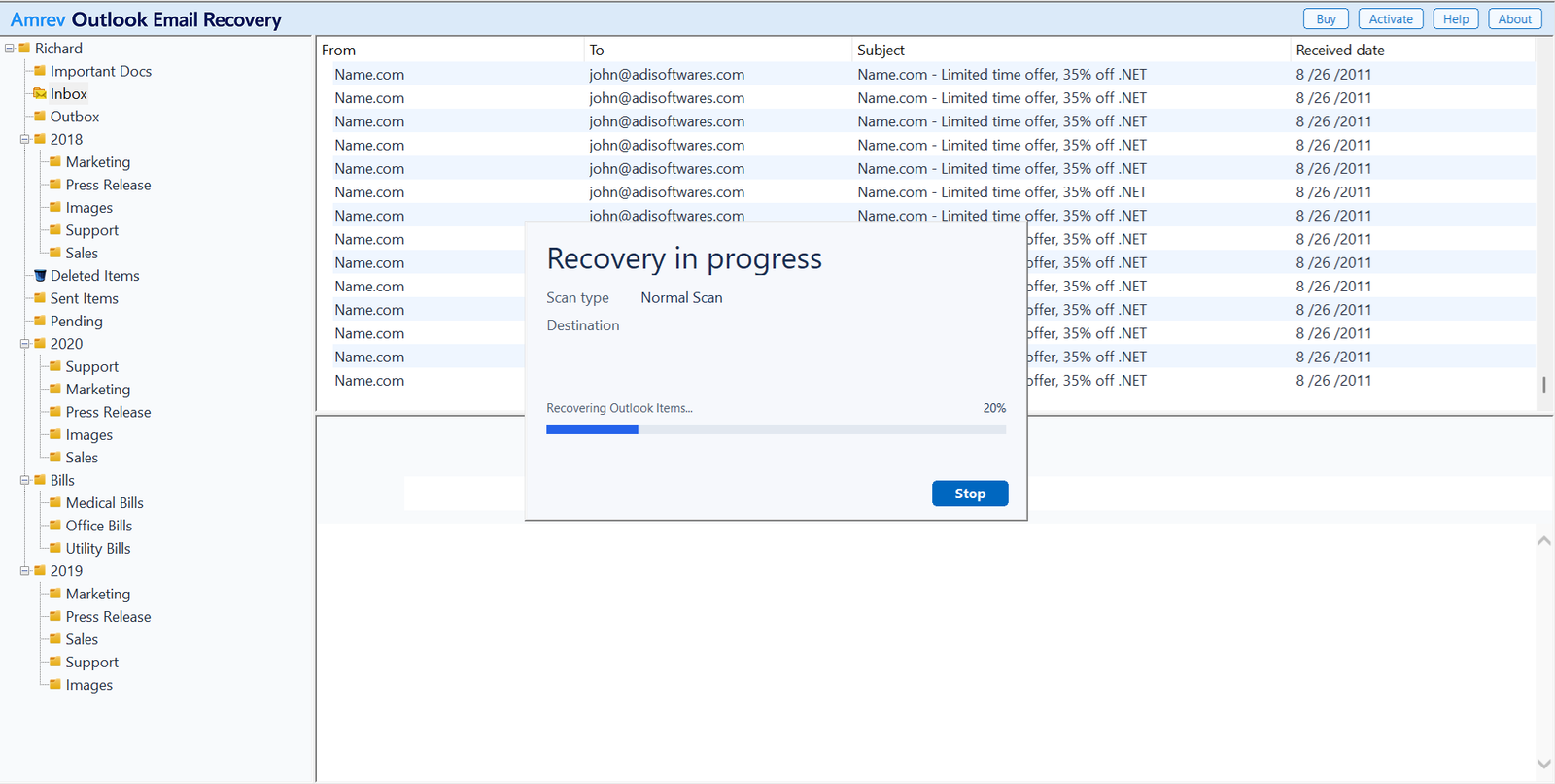
Start the scan and leave it to finish
Choose Start Recovery. Folders and messages may begin appearing while the scan is still running. Let the process reach the end before judging the result, especially when the PST is large or Intensive Scan is selected.
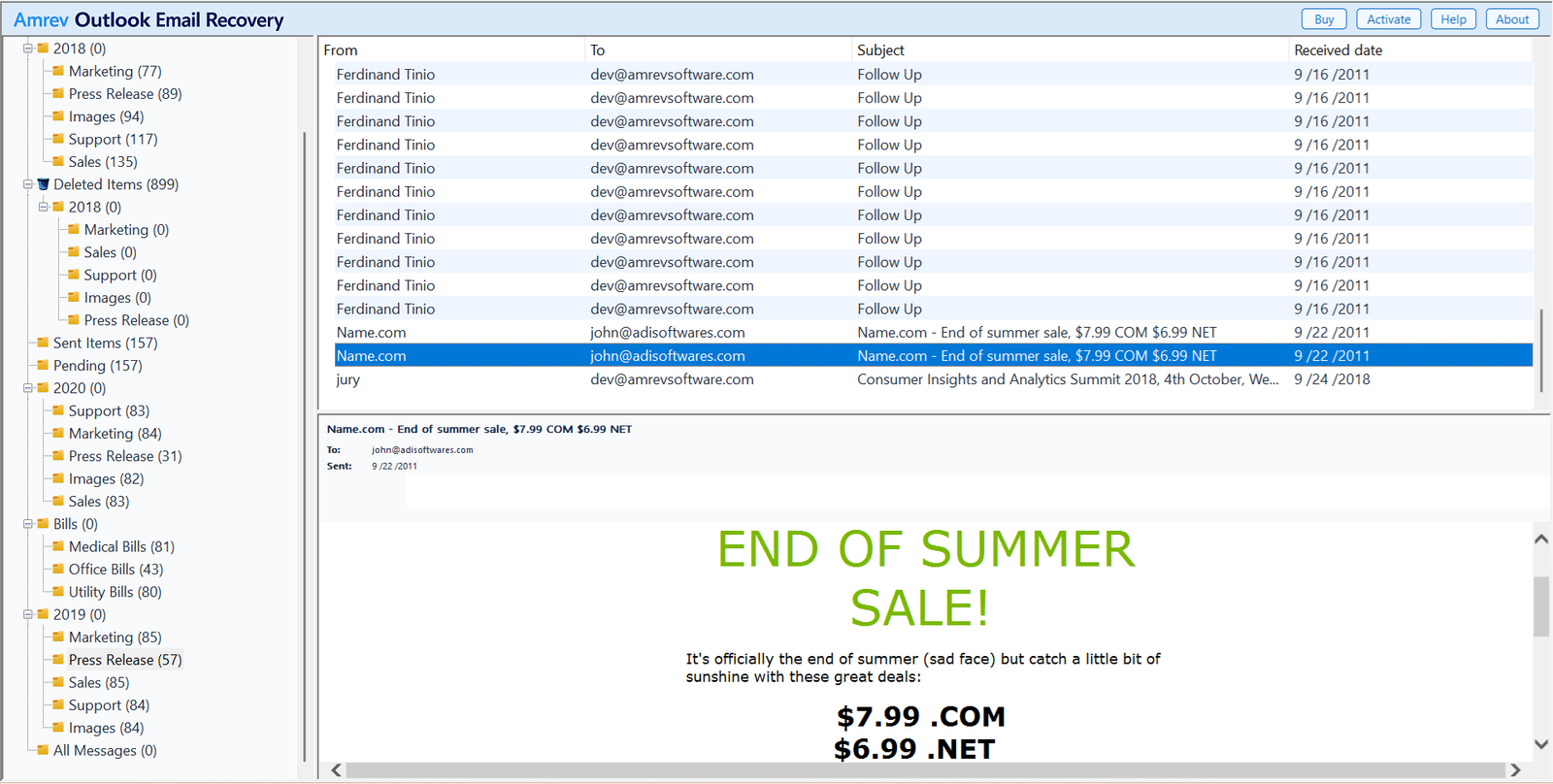
Review folders, messages, and attachments
Expand the folder tree and open several messages from different dates. Check the folders that mattered most in the damaged PST, then look at attachments, contacts, calendar entries, tasks, and notes. A few spot checks are far more useful than relying on the total item count alone.
Open or import the new PST in Outlook
After recovery is complete, the new PST is already available in the destination folder selected in Step 1. There is no separate save step. The full version writes the recovered emails and other mailbox items to this PST; the PST created by the trial does not contain the actual recovered emails. The original damaged PST remains unchanged.
Check the recovery result before buying
Use the trial to scan a copy of the corrupt PST and inspect what the program finds. The trial-created PST does not contain the actual emails; purchase and activate the full version to create a PST containing the recovered mailbox data.
ScanPST vs. Outlook PST recovery software
| Requirement | Microsoft ScanPST | Amrev recovery workflow |
|---|---|---|
| Correct PST structure errors | Yes | Scans and reconstructs recoverable data |
| Recover deleted mailbox items | Not its primary purpose | Designed to locate recoverable Outlook items |
| Inspect recovery results | No | Yes; the trial-created PST does not contain actual emails |
| Alternative scan modes | No | Normal and Intensive Scan |
| Cost | Included with Outlook | Free trial scan; full version writes recovered data to the new PST |
Frequently asked questions
Does ScanPST change the original PST file?+
ScanPST repairs the selected PST. Microsoft provides an option to create a backup during repair, but you should also make your own copy before starting.
How many times should I run ScanPST?+
Microsoft notes that the tool may need to run several times. Stop if you are concerned about the condition of the original and continue only with a backup copy.
Can a corrupt PST be repaired without Outlook?+
ScanPST is installed with classic Outlook. A separate PST recovery application can scan a PST without opening that file inside Outlook.
Should I use Normal Scan or Intensive Scan?+
Start with Normal Scan. Use Intensive Scan when the normal scan fails or the PST is severely damaged.
Can I check the recovery result before purchasing?+
Yes. The trial can scan the PST so you can inspect the recovery result. It also creates a PST in the selected destination, but that trial-created PST does not contain the actual recovered emails. The full version writes the recovered mailbox data to the new PST.