First check Outlook’s Deleted Items folder and, for Microsoft 365 or Exchange accounts, the Recover Deleted Items option. If the email is no longer available there, close Outlook and make a copy of the PST. Select that copy in Amrev Outlook Email Recovery, choose a destination and scan mode, and start recovery. The program automatically creates a new PST in the selected destination. A PST created with the full version contains the recovered mailbox data and can be opened or imported into Outlook.
Check Outlook before scanning the PST
Not every missing email needs recovery software. Work through these checks first because the message may still be available in the mailbox.
- Search the current mailbox using the sender, subject, or a phrase from the message.
- Open Deleted Items and check whether the email can be moved back to its original folder.
- Check Archive, Junk Email, and any folder used by an Outlook rule.
- If you use Microsoft 365 or Exchange, look for Recover items deleted from this folder in Deleted Items.
- Confirm that Outlook is showing the correct profile and PST file.
The server-side Recover Deleted Items option is available only for supported accounts and only while the item remains within the administrator’s retention period. A local POP account or an old standalone PST may not provide this option.
Close Outlook and copy the PST before attempting recovery. Continued use can change the data file and may reduce the chance of locating older deleted records. Run recovery against the copy and choose a different destination folder for the new PST.
Find and copy the Outlook PST file
In classic Outlook, go to File > Account Settings > Account Settings > Data Files. Select the relevant data file and choose Open File Location. Close Outlook completely before copying the PST to another local folder or drive.
If Outlook will not open, common PST locations include:
C:\Users\YourName\Documents\Outlook Files\
C:\Users\YourName\AppData\Local\Microsoft\Outlook\
Do not confuse a PST with an OST. An OST is an offline cache for a server mailbox; this guide is specifically for recovering deleted data from a PST.
Recover deleted emails from the PST file
The following process uses the copied PST. The destination is selected before the scan begins, and the recovered PST is created there automatically.
Select the PST, destination, and scan mode
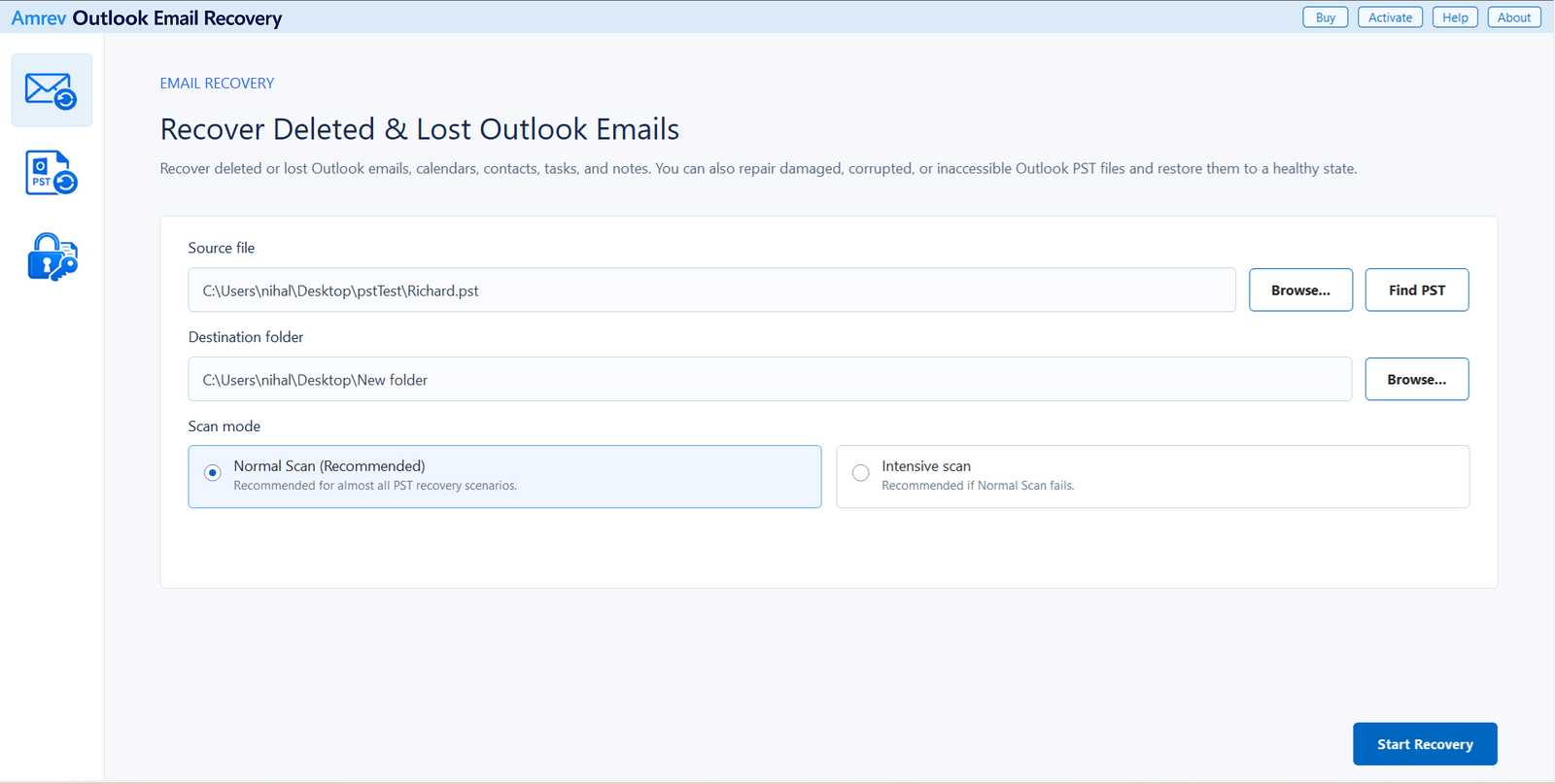
Open Amrev Outlook Email Recovery and choose Browse beside Source file. Select the copied PST, or use Find PST if its location is unknown. Choose a separate destination folder for the new PST. Start with Normal Scan; use Intensive Scan when Normal Scan does not locate the deleted emails or the PST is badly damaged.
Start recovery and let the scan finish
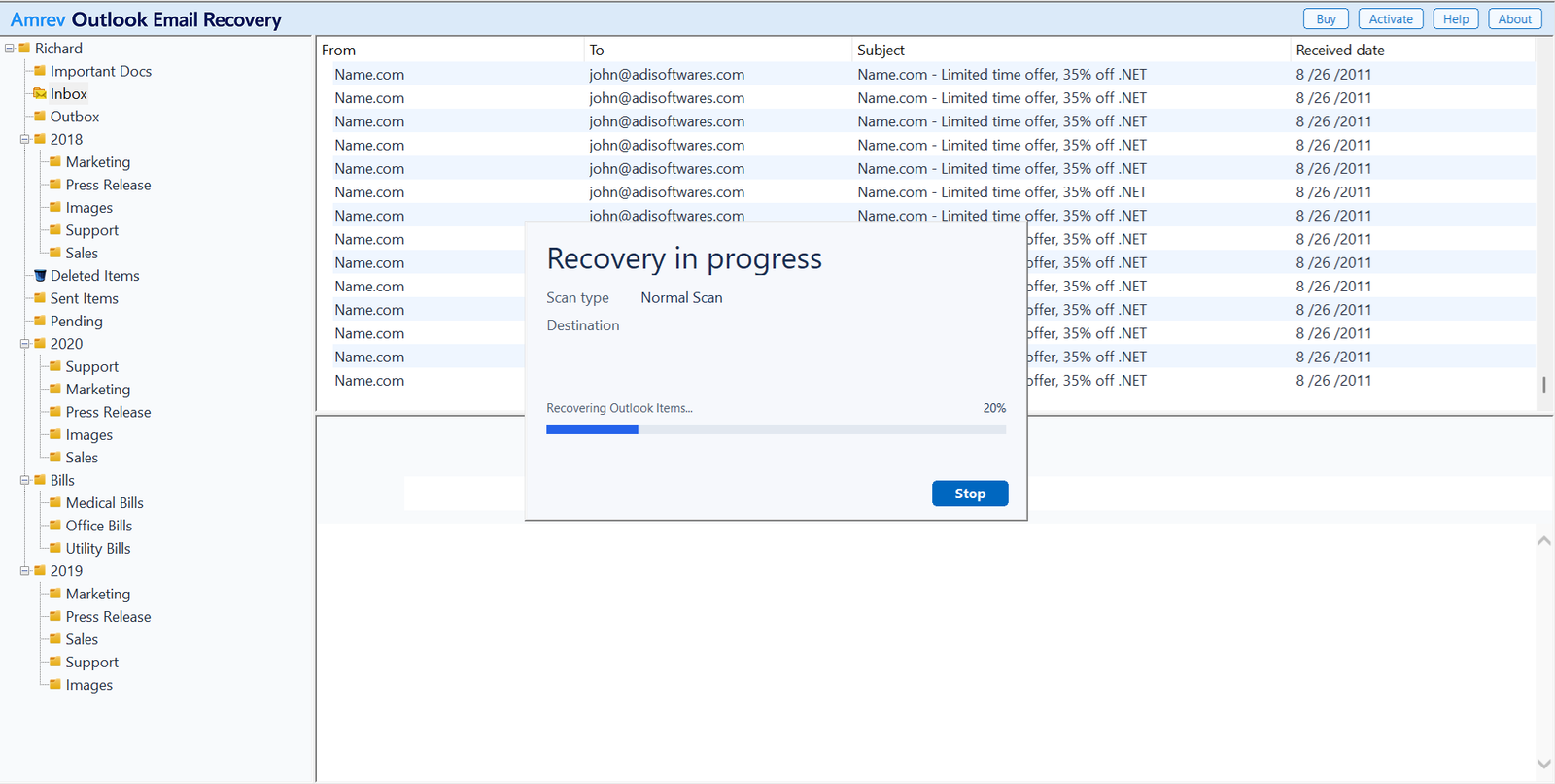
Choose Start Recovery. The folder tree and message list will begin to populate as the PST is scanned. Deleted records may be spread across the file, so allow the scan to finish before deciding whether the required emails were found.
Inspect the recovered folders and messages
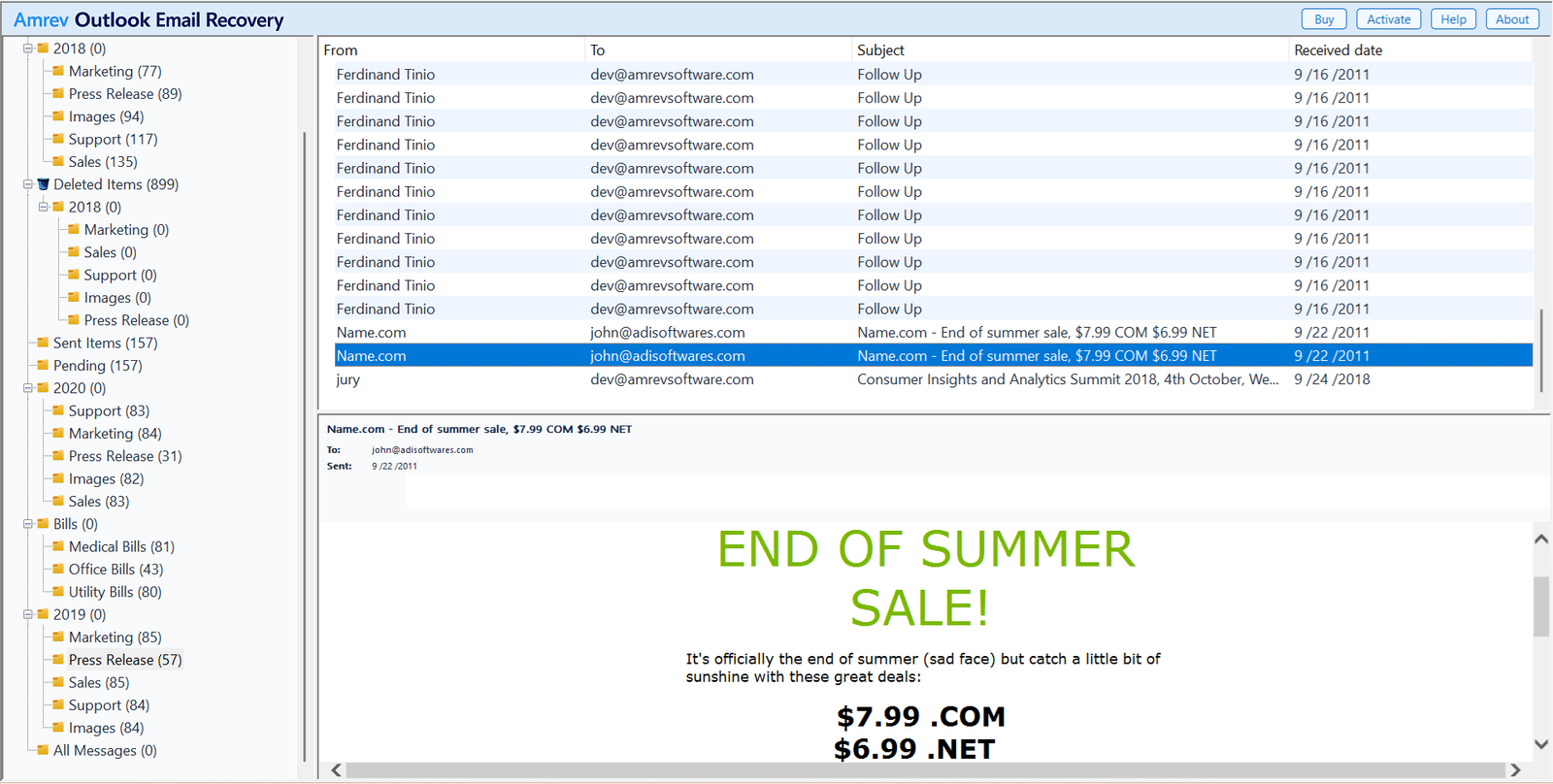
Expand the folder tree and check the folders most likely to contain the missing mail. Open messages from different dates and confirm their sender, subject, body, and attachments. Also check contacts, calendars, tasks, and notes if those items were deleted or missing from the original PST.
Open or import the recovered PST
When recovery finishes, the new PST is already in the destination selected in Step 1. There is no separate save command. The full version writes the recovered emails and other mailbox items to this file. The PST created by the trial does not contain the actual recovered emails.
See what the recovery scan finds
Use the trial to scan a copied PST and inspect the result. The trial-created PST contains no actual recovered emails; the full version creates the PST with recovered mailbox data.
When can a deleted Outlook email be recovered?
Deleting an email does not always remove every trace of it from the PST immediately. Recovery depends on what happened to the file afterward, its condition, and whether the area containing the old record has been reused.
| Situation | Recommended action |
|---|---|
| Email is still in Deleted Items | Move it back inside Outlook; no PST scan is needed. |
| Email was recently removed from Deleted Items | Check Recover Deleted Items for Microsoft 365 or Exchange accounts. |
| Email was deleted from a local or old PST | Stop using the PST, copy it, and run a recovery scan. |
| PST is corrupt or Outlook cannot open it | Use the copied PST and try Intensive Scan if Normal Scan is incomplete. |
| PST was compacted or heavily used after deletion | Recovery may be limited because deleted data may have been overwritten. |
Frequently asked questions
Can permanently deleted Outlook emails be recovered?+
They may be recoverable if they remain within a server retention period or if recoverable records still exist in the PST. Recovery is not guaranteed, particularly after the PST has been compacted or used extensively.
Can I recover emails after emptying Deleted Items?+
For Microsoft 365 and Exchange accounts, first try Recover Deleted Items. For emails stored in a local PST, work from a copy and scan the file with Amrev Outlook Email Recovery.
Does recovery change the original PST?+
Amrev reads the selected source PST and creates a separate PST in the destination folder. For additional protection, close Outlook and use a copy of the original as the source.
Should I choose Normal Scan or Intensive Scan?+
Use Normal Scan first. Try Intensive Scan if the expected emails are not found, Normal Scan cannot complete, or the PST has serious corruption.
Does the trial-created PST contain recovered emails?+
No. The trial can scan the PST and let you inspect the recovery result, but the PST it creates contains no actual recovered emails. The full version writes the recovered mailbox data to the new PST.