Open Outlook’s People view and check every Contacts folder listed under My Contacts. Look in Deleted Items and confirm that the correct PST is open. If the contacts are no longer available, close Outlook, copy the PST, and scan that copy with Amrev Outlook Email Recovery. Choose a separate destination before starting. The full version automatically creates a new PST containing recoverable contacts and other mailbox items.
Check Outlook before scanning the PST
Contacts can seem to disappear when Outlook switches profiles, opens another data file, or displays a different Contacts folder. Work through these checks first:
- Open the People or Contacts view.
- Expand My Contacts and select each Contacts folder.
- Use the contact search box and search by name, company, email address, or phone number.
- Check Deleted Items for an individual contact or an entire Contacts folder.
- Confirm that the PST containing the contacts appears in the Outlook folder pane.
Also check whether the contacts belong to another account. A Microsoft 365, Outlook.com, or Exchange contact folder may be stored on the server rather than in the local PST you expected.
Saved contacts are not the same as autocomplete entries
When you type in the To, Cc, or Bcc box, Outlook may suggest people you have emailed before. Those suggestions are part of the autocomplete list; they are not necessarily saved contact items.
A recovered PST can contain contact records that were stored in a Contacts folder. It should not be described as a way to rebuild every address that once appeared in autocomplete. Before starting recovery, open People and confirm whether you are missing saved contacts, autocomplete suggestions, or both.
Close Outlook before copying the PST. Use the copy for recovery and choose another folder as the destination. This keeps the original file unchanged while you inspect the recovery result.
Find the PST that stored the contacts
In classic Outlook, go to File > Account Settings > Account Settings > Data Files. Select the relevant PST and choose Open File Location. If more than one PST is listed, note which data file appears beside the Contacts folder in the folder pane.
When Outlook will not open, look in these common locations:
C:\Users\YourName\Documents\Outlook Files\
C:\Users\YourName\AppData\Local\Microsoft\Outlook\
Close Outlook before making the copy. Do not use a PST that is still open in Outlook as the active recovery source.
Recover the Contacts folder from the PST
Amrev scans the selected PST for recoverable mailbox records, including contacts. It creates the result in a new PST at the destination selected before the scan.
Select the PST, destination, and scan mode
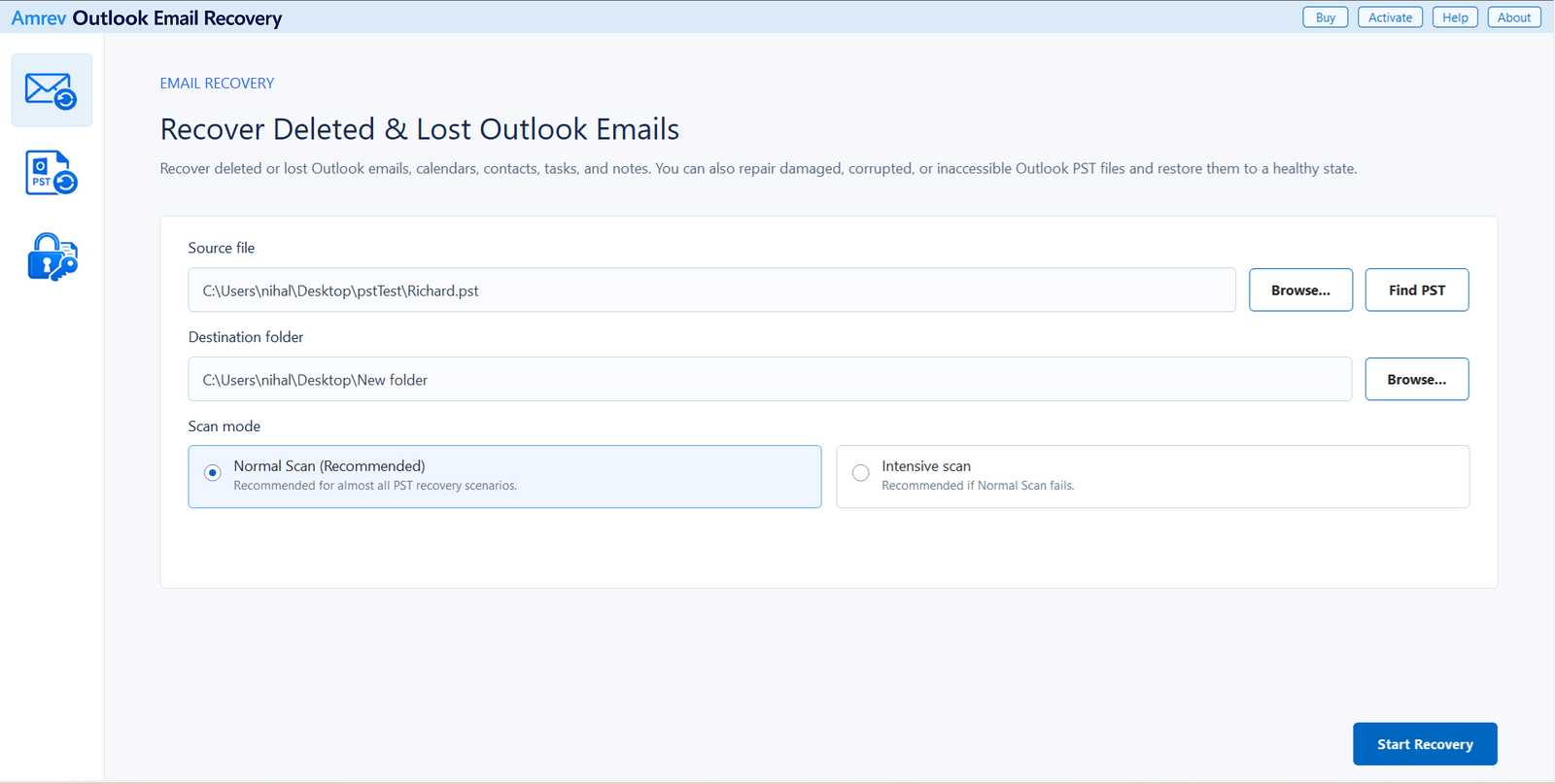
Open Amrev Outlook Email Recovery and choose Browse beside Source file. Select the copied PST, or use Find PST if its location is unknown. Choose a separate destination folder for the recovered PST. Begin with Normal Scan; use Intensive Scan if the Contacts folder is not found or the PST has serious damage.
Start recovery and allow the scan to finish
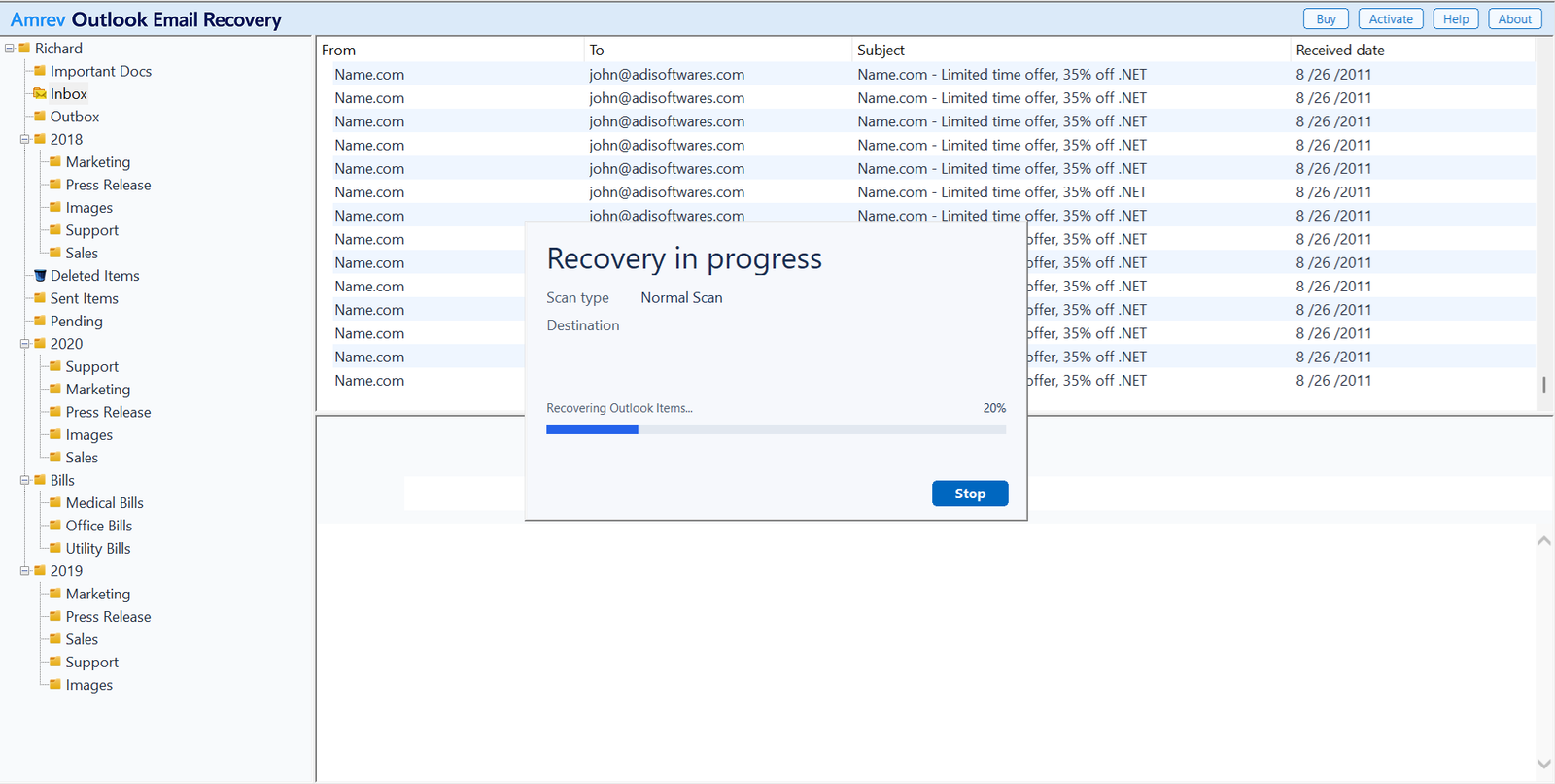
Choose Start Recovery. The application builds the folder tree while reading the PST. Do not stop when the mail folders first appear; the Contacts folder and older deleted records may be found later in the scan.
Inspect the recovered contacts
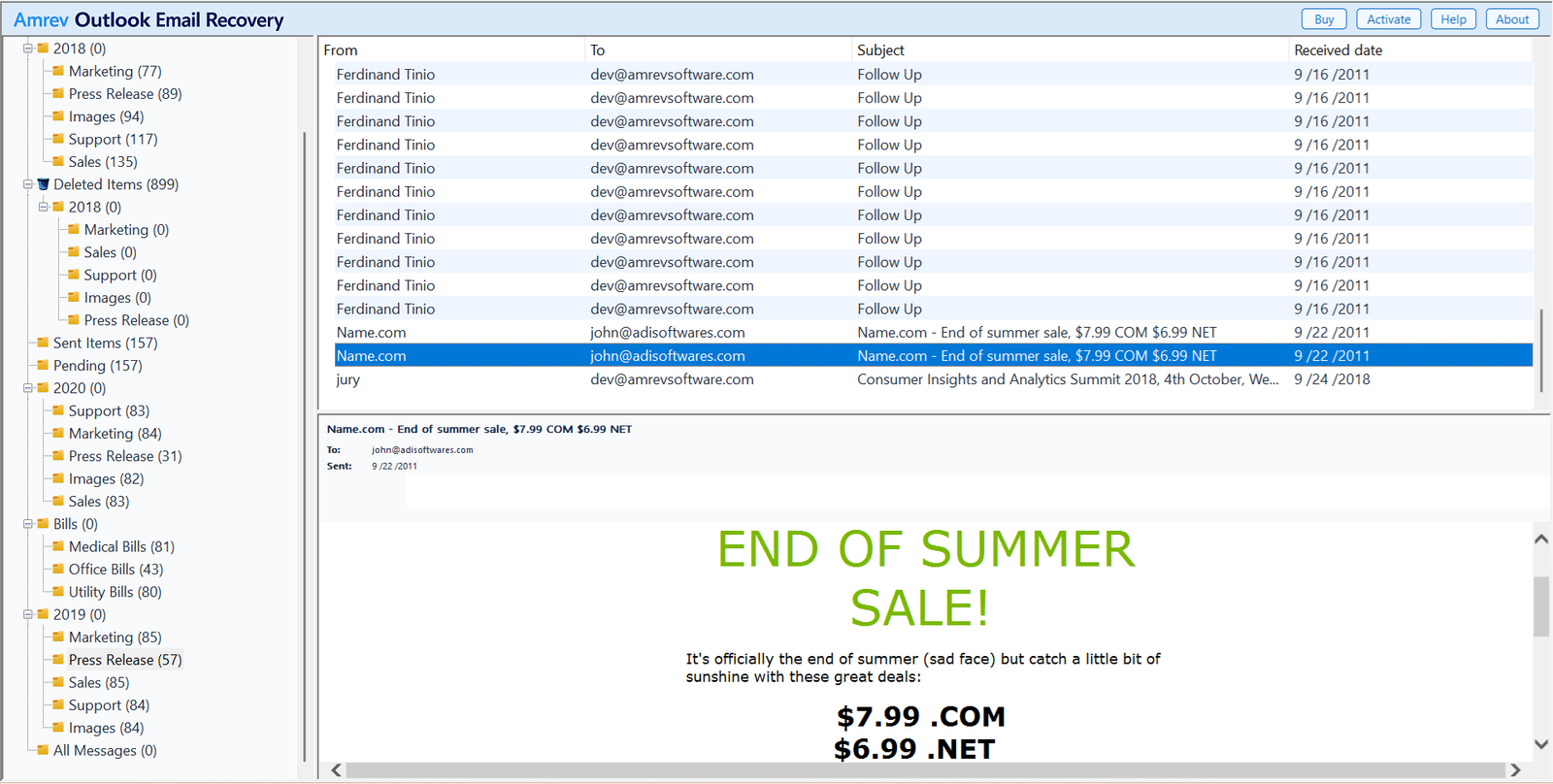
Open the recovered Contacts folder and check several important entries. Confirm names, email addresses, phone numbers, companies, notes, and any other fields you rely on. If more than one Contacts folder appears, compare their dates and contents before deciding which one is current.
Open or import the new PST in Outlook
After recovery, the new PST is already available in the destination selected in Step 1. There is no separate save command. The full version writes recovered contacts, emails, and other mailbox items to this PST. The PST created by the trial contains no actual recovered Outlook items.
Scan a copy of your Outlook PST
The trial can show the recovery result, but its generated PST contains no actual contacts or emails. The full version creates the PST with recovered mailbox data.
Make the recovered folder available to the Address Book
Opening a PST can make its Contacts folder visible in People without immediately making it available when you address a new email. In classic Outlook, right-click the recovered Contacts folder, choose Properties, and open the Outlook Address Book tab. If available, select Show this folder as an email Address Book.
Test a few names in a new message before removing the old data file. Keep the recovered PST until you have confirmed that the contact fields and distribution lists you need are available.
Frequently asked questions
Where are contacts stored in an Outlook PST?+
Saved contacts are stored as items inside one or more Contacts folders in the PST. A PST can contain several Contacts folders, especially if data was imported or archived previously.
Can deleted Outlook contacts be recovered?+
They may be recoverable when their records still exist in the PST. Continued use or compaction can overwrite deleted data, so close Outlook and work from a copy as soon as possible.
Will PST recovery restore my autocomplete list?+
Not necessarily. Autocomplete suggestions are different from saved contact items. This process is intended to recover contacts stored in the PST’s Contacts folders.
Should I use Normal Scan or Intensive Scan?+
Start with Normal Scan. Use Intensive Scan if the Contacts folder is missing from the result or the PST is severely damaged.
Does the trial PST contain recovered contacts?+
No. The trial can scan the PST and show the recovery result, but its generated PST contains no actual recovered contacts or emails. The full version writes recovered Outlook data to the new PST.