Do not keep reopening Outlook if it repeatedly crashes on the same PST. End any remaining Outlook process, locate the PST, and copy it to a safe local folder. If the original mailbox will not open or emails and folders are missing, select the copied PST in Amrev Outlook Email Recovery, choose a separate destination, and run Normal Scan. The full version automatically creates a new PST containing the recovered data, ready to open or import into Outlook.
What to do immediately after Outlook crashes
One crash does not always mean the data file is damaged. Start Outlook once and check the mailbox. If it opens normally, look at the folders you were using when the crash occurred and confirm that recent messages and attachments are present.
If Outlook closes again, reports a data-file error, or shows an incomplete mailbox, stop retrying and protect the PST:
- Close Outlook and open Task Manager.
- Make sure
OUTLOOK.EXEis no longer running. - Locate the PST used by the affected Outlook profile.
- Copy the PST to another local folder before running repair or recovery.
A clean copy gives you a stable starting point. It also prevents a repair attempt or another Outlook crash from becoming the only version of the file you have.
It applies when Outlook crashed but Windows and the drive remain accessible. It does not recover a PST deleted by formatting, a lost partition, or data from a physically failed drive.
Find the PST that Outlook was using
If Outlook stays open long enough, go to File > Account Settings > Account Settings > Data Files. Select the affected data file and choose Open File Location. Close Outlook before copying it.
If Outlook will not open, check these common folders:
C:\Users\YourName\Documents\Outlook Files\
C:\Users\YourName\AppData\Local\Microsoft\Outlook\
Check the file type before continuing. This recovery process needs a PST. An OST is a synchronized offline cache and is handled differently.
Signs the crash damaged the PST
- Outlook says the data file cannot be opened.
- Outlook crashes again while loading the same profile.
- The folder tree appears incomplete after restart.
- Recent emails or attachments have disappeared.
- A folder opens slowly or makes Outlook stop responding.
- ScanPST runs, but the repaired PST is still incomplete.
Outlook can also fail because of an add-in or profile problem. If it opens normally in safe mode and all folders are present, investigate the add-ins before assuming that the PST needs recovery. A PST scan is most useful when the mailbox itself will not open or its contents are missing.
Recover the mailbox from the damaged PST
Use the PST copy rather than the file still attached to Outlook. Choose a different destination so the recovered result cannot overwrite the damaged source.
Select the copied PST and a destination
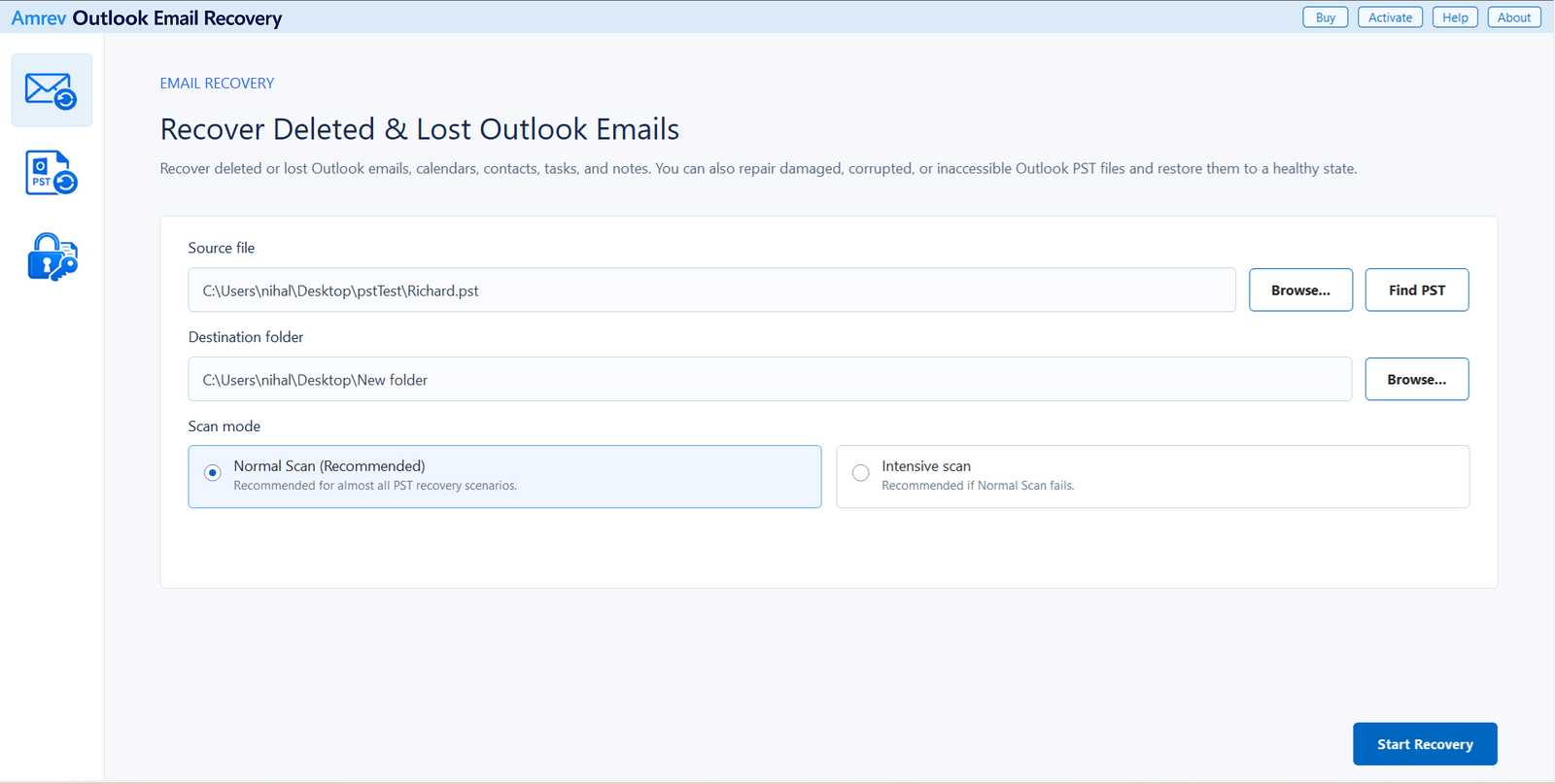
Open Amrev Outlook Email Recovery and choose Browse beside Source file. Select the copied PST, or use Find PST if necessary. Then select the folder where the program should create the recovered PST. Start with Normal Scan. Choose Intensive Scan if Normal Scan cannot read the file or returns an incomplete mailbox.
Let the recovery scan finish
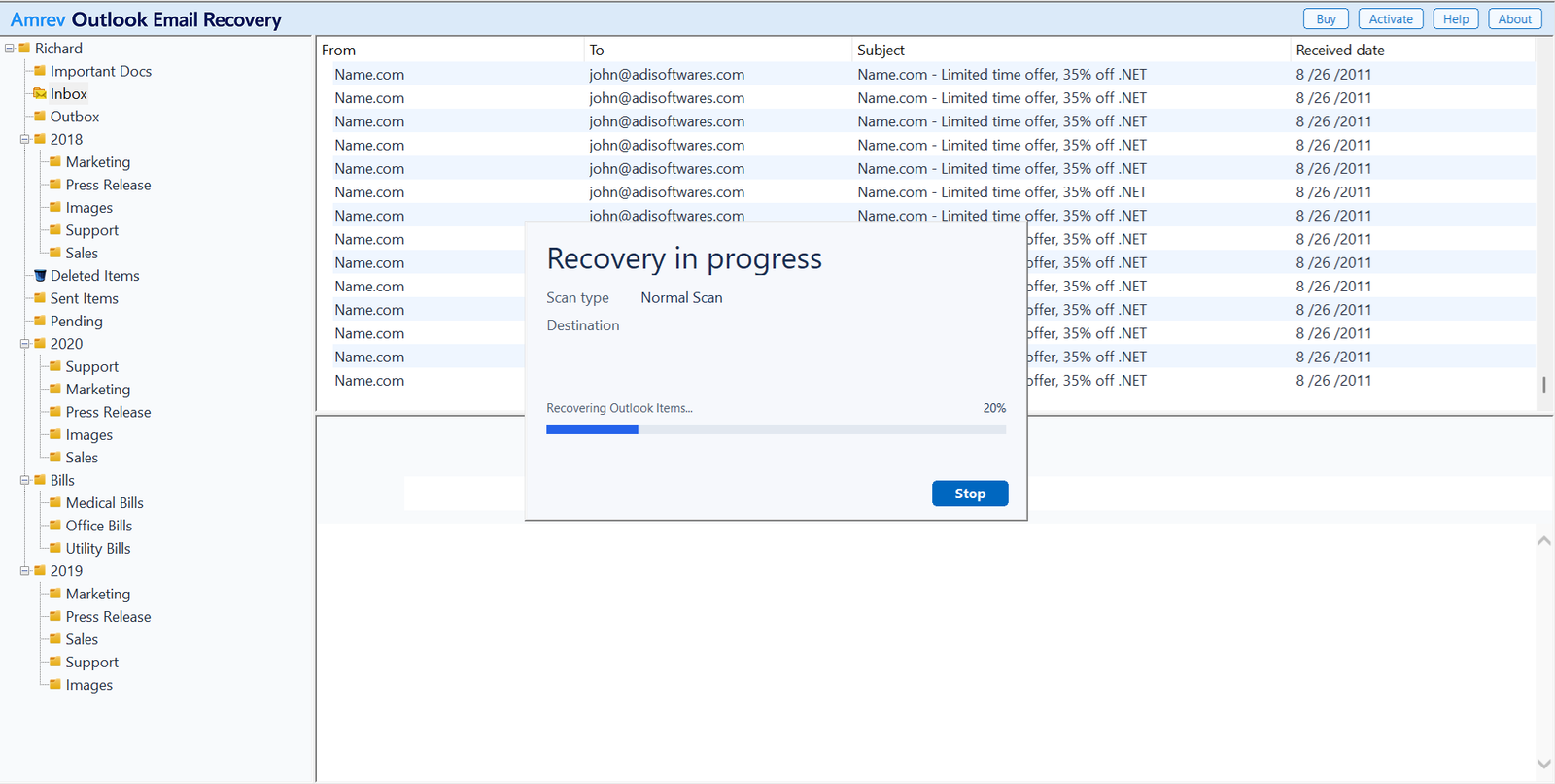
Choose Start Recovery. The folder tree and message list begin to fill as records are found. Large or damaged PST files take longer, and later parts of the file may contain folders that are not visible at the beginning. Leave the scan running until it completes.
Check the mailbox recovered from the crash
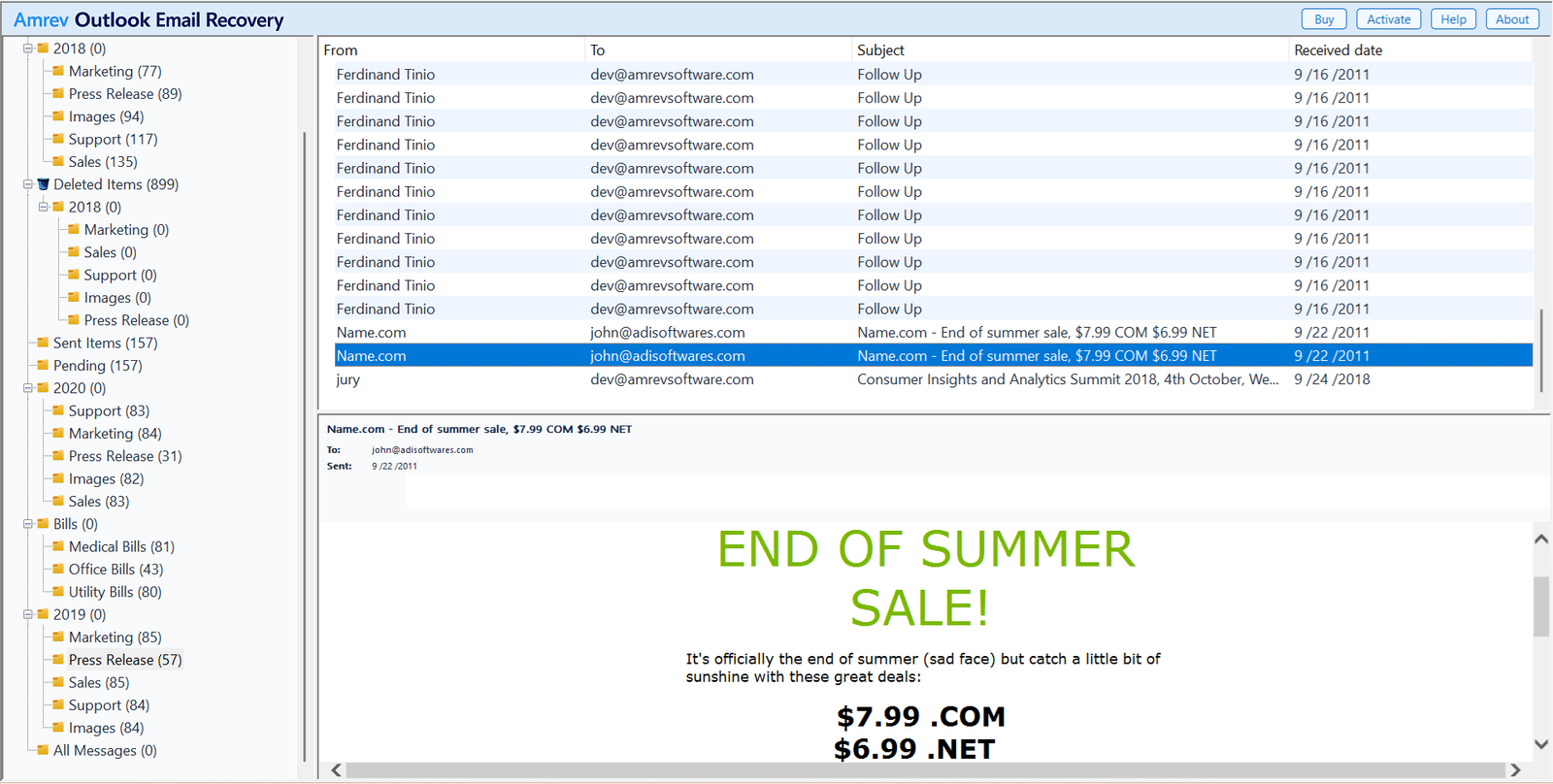
Expand the folder tree and inspect Inbox, Sent Items, Deleted Items, and the folder Outlook was using when it crashed. Open messages from before and after the crash and check their bodies and attachments. Also review contacts, calendars, tasks, and notes if they were stored in the PST.
Open or import the new PST
When recovery ends, the new PST has already been created in the destination selected in Step 1. There is no separate save step. With the full version, that PST contains the recovered emails and other mailbox data. The PST generated by the trial contains no actual recovered emails.
See what can be recovered after the crash
The trial can scan the copied PST and show the recovery result. Its generated PST contains no actual emails; the full version creates the PST with recovered mailbox data.
Before reconnecting the recovered PST
Do not replace the damaged PST immediately. Open the recovered PST as a separate data file first and compare its folders with the original mailbox. Once the important data has been checked, you can keep it as an archive or import selected folders into a healthy Outlook profile.
If Outlook continues to crash with a new or known-good PST, the problem is probably outside the recovered file. Disable unnecessary add-ins, update Office, and test a new Outlook profile before attaching the recovered data again.
Frequently asked questions
Can an Outlook crash corrupt a PST file?+
Yes. If Outlook stops while writing to a PST, the file can be left with structural errors or incomplete records. A crash does not always cause damage, so check the mailbox before starting recovery.
Should I keep trying to open Outlook after it crashes?+
One restart is reasonable. If Outlook repeatedly crashes on the same file or reports a PST error, stop and copy the PST before doing more troubleshooting.
Does this process recover a PST from a formatted drive?+
No. The PST must still exist and be accessible. This guide is for a PST damaged by an Outlook crash while Windows and the storage drive continue to work.
Should I use Normal Scan or Intensive Scan?+
Begin with Normal Scan. Use Intensive Scan if the PST cannot be read, the result is incomplete, or the file suffered serious damage.
Does the trial-generated PST contain recovered emails?+
No. The trial can scan the PST and let you inspect the recovery result, but its generated PST contains no actual recovered emails. The full version writes the recovered mailbox data to the new PST.