Do not assume the Outlook Data File (PST) was deleted simply because a repaired or reinstalled Outlook opens with no old mail. Search the previous Windows user profile, `Windows.old`, secondary partitions, and backups. If the PST cannot be found, stop writing to the old drive and scan it with Amrev PST Recovery. Save found PST files to another physical drive, then open them in Outlook or use Email Recovery mode if a recovered PST is damaged.
Why Outlook data appears missing after a system crash
A Windows repair or reinstall often creates a new user profile. Outlook then creates a new mail profile and does not automatically attach data files from the old Windows installation. The old PST may still be present even though Outlook looks empty.
- Outlook is using a new Windows user profile.
- The old PST is stored under Windows.old.
- The data file remains on another partition or drive.
- The old Outlook profile was not recreated.
- The PST was deleted during repair or reinstall.
- The drive or file system was damaged by the crash.
This article concerns a Windows or system failure. If only Outlook crashed while Windows continued to work and the PST still exists, use the separate Outlook-crash recovery guide.
Look for the existing PST before scanning the drive
Check the previous Windows user profile
Open File Explorer and check the old user folder under C:\Users\. Look in Documents\Outlook Files and AppData\Local\Microsoft\Outlook. AppData is hidden, so enable View > Show > Hidden items.
C:\Users\OldUserName\Documents\Outlook Files\
C:\Users\OldUserName\AppData\Local\Microsoft\Outlook\
Check Windows.old after a reinstall
If Windows preserved the previous installation, search these locations:
C:\Windows.old\Users\OldUserName\Documents\Outlook Files\
C:\Windows.old\Users\OldUserName\AppData\Local\Microsoft\Outlook\
Search all connected drives
Select This PC in File Explorer and search for *.pst. Check secondary drives, external backups, File History, and any old system drive attached through a USB or SATA adapter.
Do not install software or save recovered files on the old source drive. Windows updates and ordinary use can overwrite lost PST data. Run Amrev from another drive and save results to a different physical device.
If you find the original Outlook Data File (PST)
Copy the PST to a safe local folder before opening it. Keep the discovered original untouched and use a duplicate for testing.
- Install or open classic Outlook in the working Windows installation.
- Choose File > Open & Export > Open Outlook Data File.
- Select the copied PST.
- Expand its folders and check recent messages, contacts, and calendar items.
If Outlook opens the PST normally, no drive scan is necessary. If Outlook rejects it or folders are incomplete, scan a copy in Amrev Email Recovery mode.
Scan the old drive when the PST cannot be found
Use PST Recovery when the Outlook data file is absent from the old user profile, Windows.old, and backups. Connect a separate destination drive before starting.
Select the old Windows or data drive
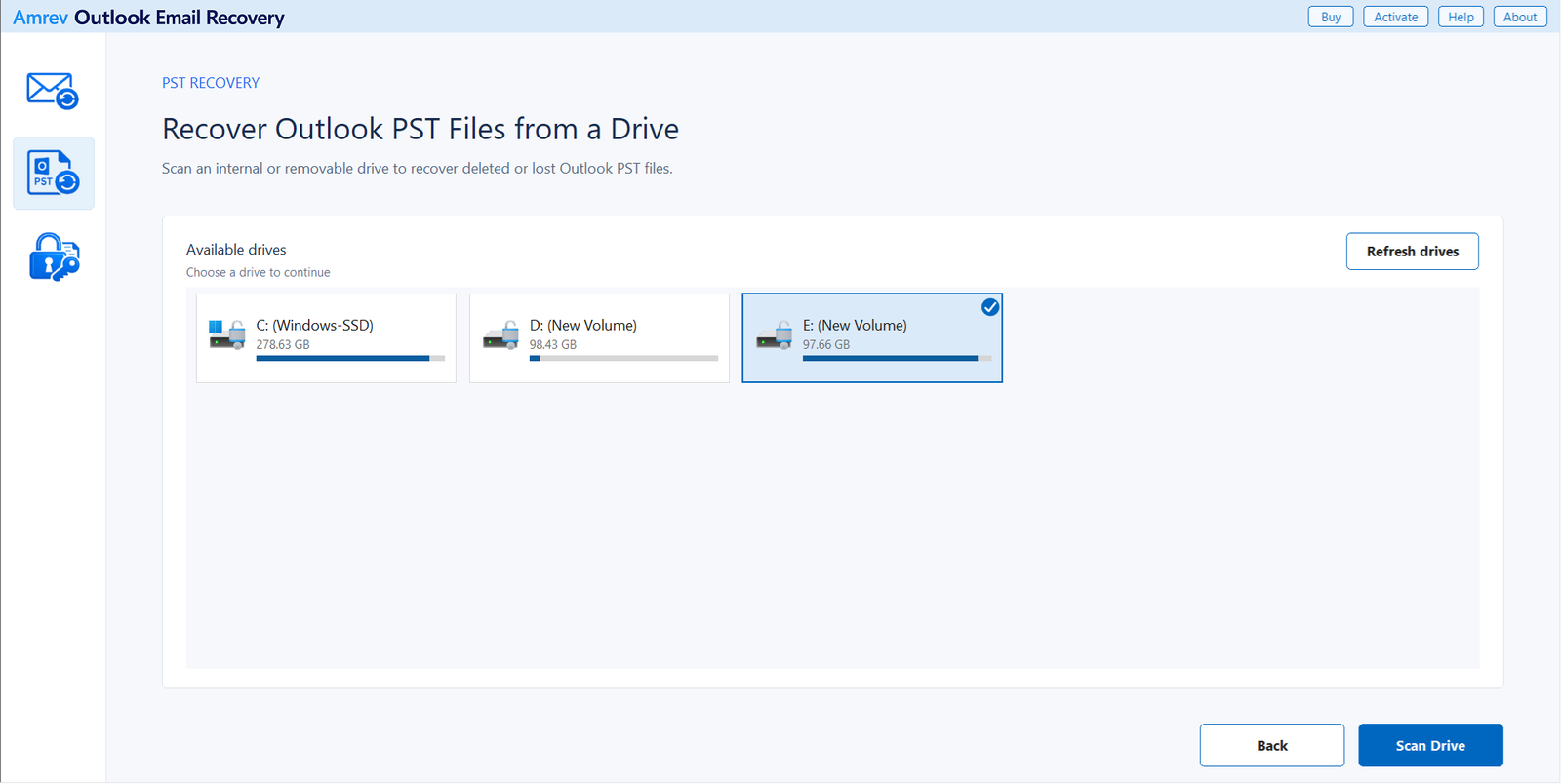
Open Amrev Outlook Email Recovery and select PST Recovery on the left. Choose the drive that stored Outlook data before the system crash or reinstall, then select Scan Drive. If the old drive was attached after opening the program, choose Refresh drives.
Allow the drive scan to finish
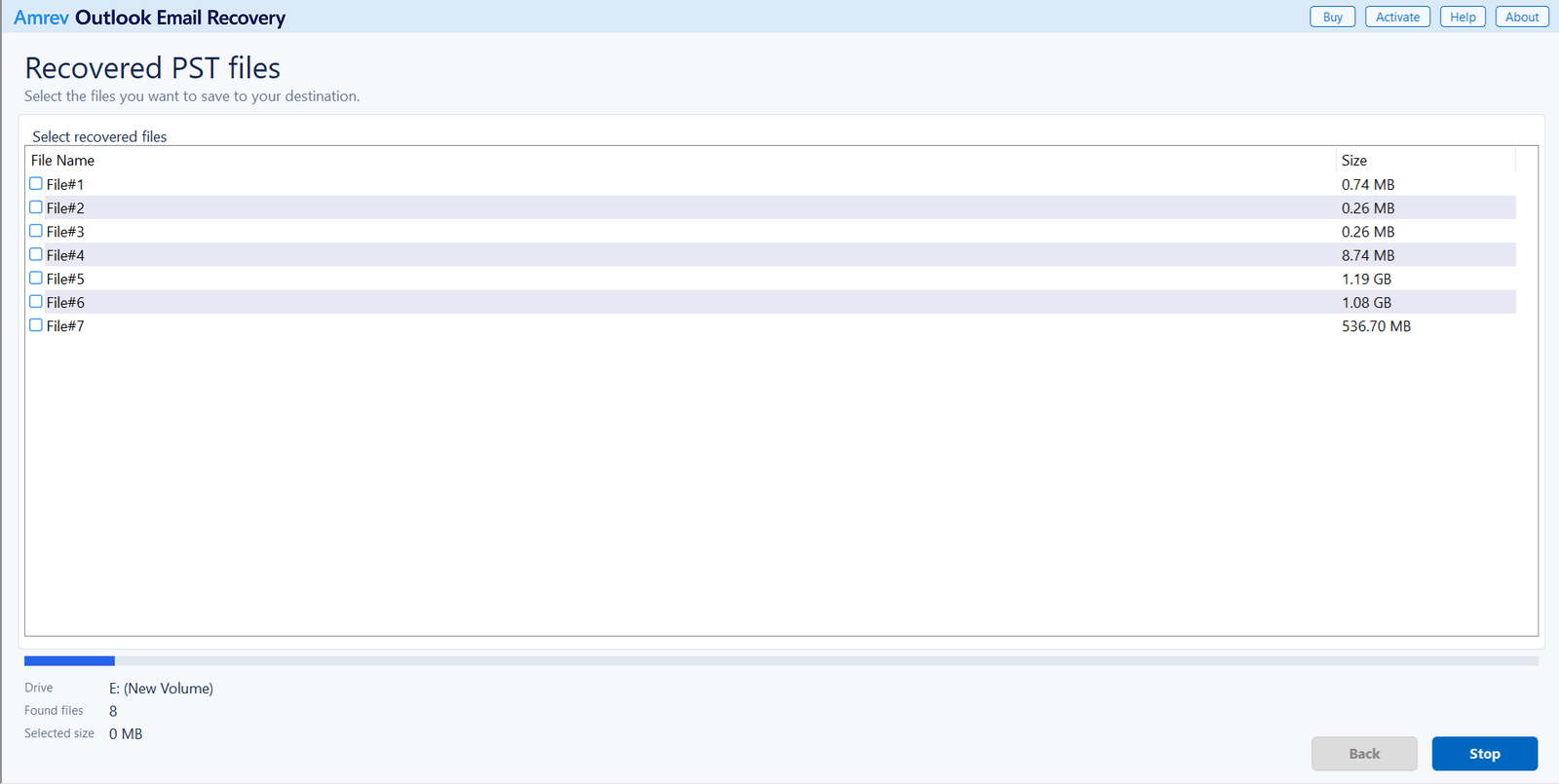
Amrev lists PST files as they are discovered. Let the scan continue to completion whenever possible. A system repair or reinstall may leave several old and new PST files on the same drive, and the required file may appear later.
Select likely Outlook Data Files
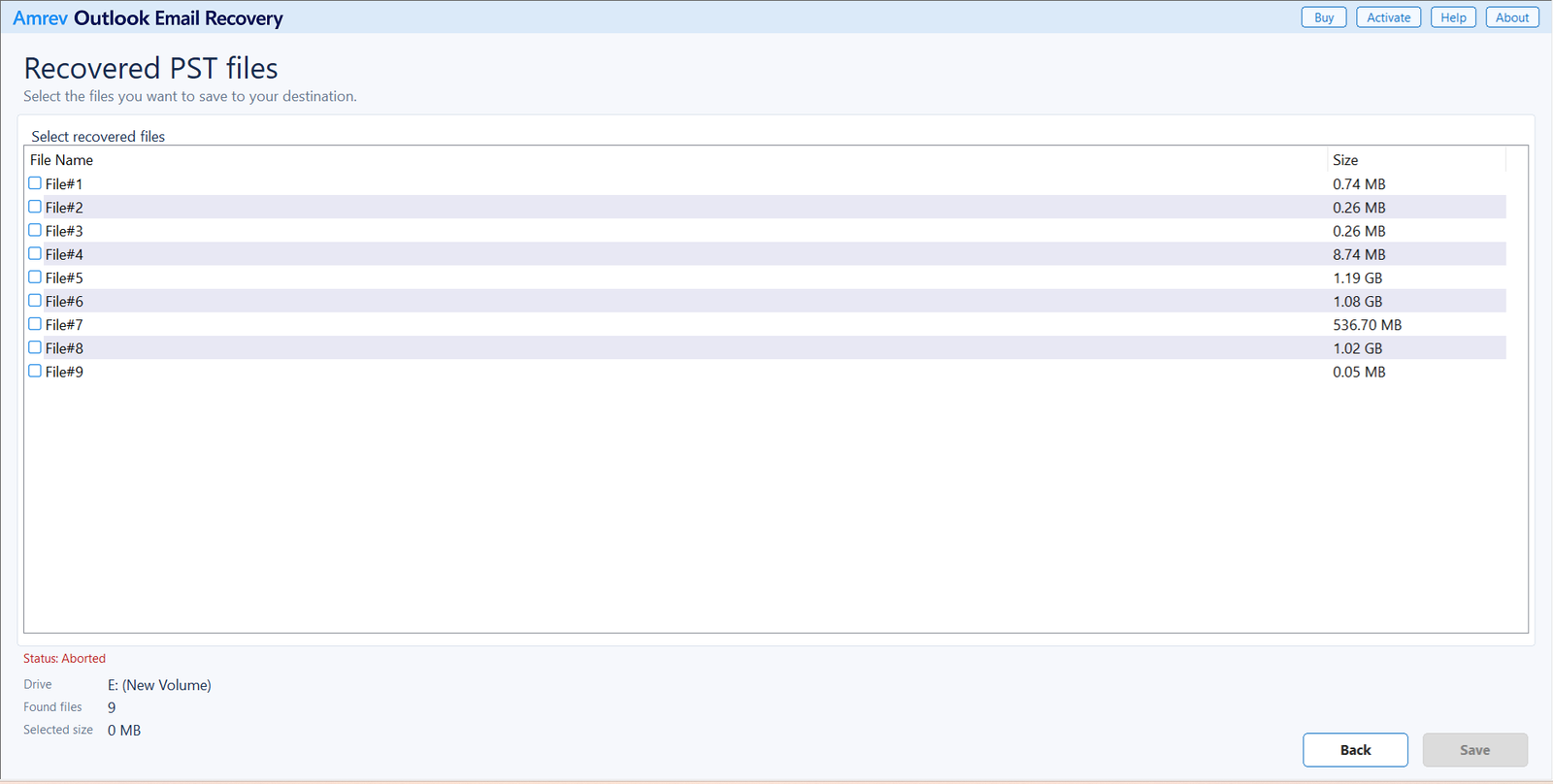
Select every plausible PST using the checkboxes. Original names may be unavailable, so compare file sizes and recover several candidates when destination space permits. An archive and the active mailbox may both be useful.
Save elsewhere and test copies
Choose Save and use a different physical drive as the destination. Keep an untouched copy of every recovered result. Make additional copies for Outlook, ScanPST, or Email Recovery testing.
Look for Outlook data after Windows failure
Scan the previous system or data drive and save found PST files to another physical device.
What if the old drive has physically failed?
Do not repeatedly power a drive that clicks, disappears from Windows, reports the wrong capacity, or causes the computer to freeze. Software recovery needs the device to be detected and readable. Continued attempts can make a mechanical failure worse.
For physically damaged storage, use a professional data-recovery service. After the service provides a recovered PST, keep the original copy untouched and use Amrev Email Recovery only if Outlook cannot open the file or its mailbox is incomplete.
Frequently asked questions
Where is my PST after Windows is reinstalled?+
Check the previous user profile, Windows.old, secondary drives, and backups. Search all connected drives for *.pst before starting a recovery scan.
Why is Outlook empty after the system was repaired?+
Outlook may be using a new mail profile that is not connected to the old PST. Locate the existing data file and open it manually before assuming it was deleted.
Can Amrev scan the old system drive for PST files?+
Yes. PST Recovery can scan a detected internal or removable drive and list Outlook PST files it finds.
Can I save recovered PST files to the old drive?+
No. Save results to another physical drive to avoid overwriting other recoverable data on the source.
What if Outlook cannot open a recovered PST?+
Keep the recovered original unchanged. Scan a copy with Amrev Email Recovery to rebuild recoverable folders and mailbox items into a new PST.